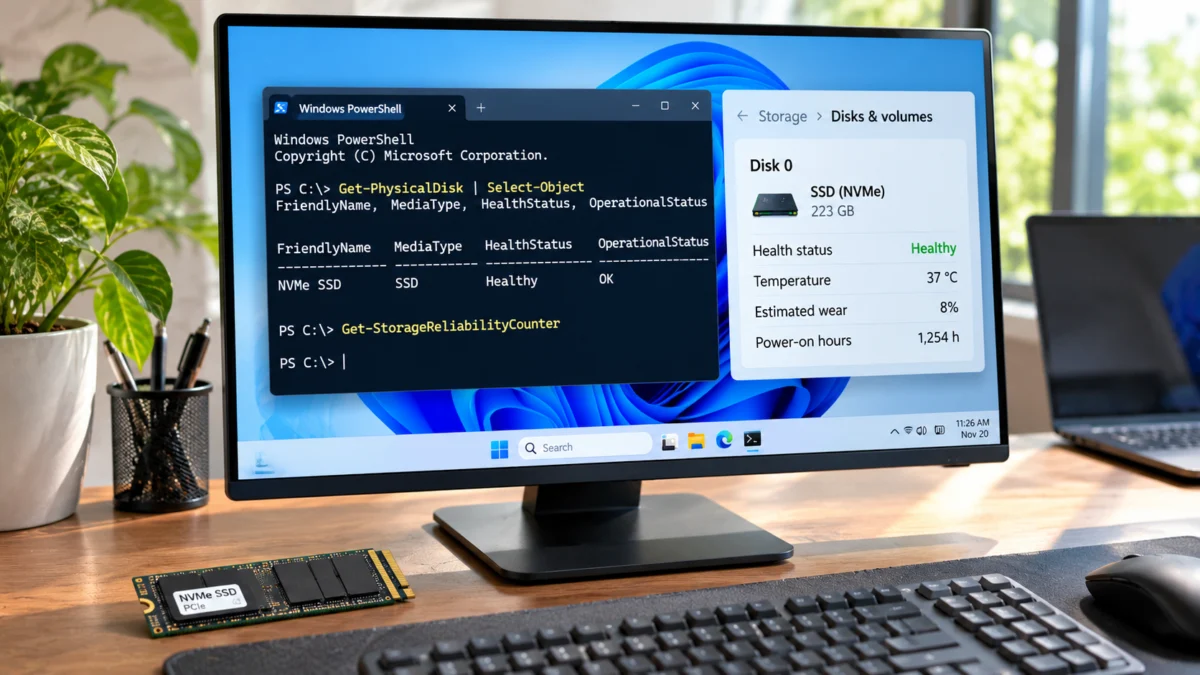
You do not need to install a third-party program just to make a first check of your SSD in Windows 11. Windows includes a storage health page for supported NVMe drives and PowerShell commands that can report a disk’s health status, temperature, wear indicator, power-on hours and error counters when the drive and its storage controller expose that information.
This guide shows how to identify the correct disk, check its health in Windows Settings, and read the results using built-in PowerShell tools. It also explains what the numbers mean, why some fields may be blank, and what to do if Windows reports a warning. These checks are useful for an early assessment, but they are not a guarantee that an SSD can never fail.
What can Windows 11 tell you about SSD health?
Windows can display device health information when the SSD, storage controller and driver provide the relevant data. Depending on the drive, you may be able to see a general health warning, estimated remaining life, available spare capacity and temperature. PowerShell can also request reliability counters such as device wear, power-on hours and reported read or write errors.
There is an important limitation: Microsoft’s Windows storage health page monitors NVMe (NVM) SSDs, not SATA SSDs or traditional hard drives. The PowerShell Storage cmdlets can expose additional device-reported information, but the available fields depend on the hardware, firmware, controller and driver. A blank value or an unsupported command result does not automatically mean the SSD is damaged.
Before you start: identify the correct SSD
If your computer has more than one drive, identify the disk before interpreting its health. Windows labels disks with numbers such as Disk 0 and Disk 1. Do not assume that Disk 0 is always the Windows SSD or that a drive letter such as C: represents a separate physical disk.
- Right-click the Start button.
- Open Disk Management.
- Look at the lower pane and note which physical disk contains the C: volume or the volume you want to inspect.
- Also note whether your computer has additional internal drives, USB storage or a Storage Spaces setup.
You can also list the disks from PowerShell. Open Start, search for Windows PowerShell or Terminal, and open it. The commands in this guide are read-only checks; you do not need to format, initialise or erase a disk.
Get-Disk | Select-Object Number, FriendlyName, SerialNumber, BusType, HealthStatus, OperationalStatus, SizeCheck the model, bus type, capacity and disk number in the output. The serial number may not be available on every system. Use more than one identifier if you have multiple drives with similar names.
Method 1: Check SSD health in Windows 11 Settings
This is the easiest method when your PC has a supported NVMe SSD and Windows can read its health information.
- Press Windows + I to open Settings.
- Select System.
- Open Storage.
- Expand Advanced storage settings.
- Select Disks & volumes.
- Choose the NVMe drive you want to inspect.
- Open Properties and review the drive health information, if Windows provides it.
Depending on the Windows 11 build and device, the page may show information such as estimated remaining life, available spare capacity and temperature. If the health section is missing, the drive may be a SATA SSD or HDD, or the device/controller may not expose the supported health data to Windows. Do not treat the absence of this section as a failure warning.
Understand the Windows drive health warnings
Microsoft describes several critical warnings that can appear for a monitored NVMe SSD. These are not cosmetic messages. Back up important data promptly if Windows reports one of them.
| Windows warning | What it means | What to do |
|---|---|---|
| Spare capacity is low | The available spare storage capacity has dropped below the manufacturer’s safety threshold. | Back up important files and check the SSD manufacturer’s diagnostic guidance. |
| Reliability is degraded | Windows has detected significant media-related errors or an internal error in the NVM subsystem. | Back up immediately, avoid unnecessary writes and seek manufacturer or technical support. |
| Drive is set to read-only | Data may still be readable, but Windows cannot write to the device. | Copy important files to another drive and investigate the device. Do not try to force-write to it. |
Windows may also display estimated remaining life, available spare and temperature. Estimated remaining life is based on the device manufacturer’s prediction. It is not a precise countdown to failure, and a percentage should not be interpreted as a guarantee that the drive will last for that many months or years.
Method 2: Check SSD health using PowerShell
PowerShell is useful because it can list physical disks and request reliability counters from the Windows Storage module. It is built into Windows 11, so you do not need to download an SSD health application for these checks.
Step 1: List physical disks and their health status
Open Windows Terminal or PowerShell. For the first check, run:
Get-PhysicalDisk | Select-Object FriendlyName, MediaType, HealthStatus, OperationalStatus, SizeThe output may include a disk name, whether it is an SSD or HDD, its health status, operational status and capacity.
| Output | How to read it |
|---|---|
| Healthy | The storage provider currently reports the device as healthy. It is a useful status, not a guarantee against future failure. |
| Warning | The provider has detected a condition that needs investigation. Check the disk’s detailed status and back up important files. |
| Unhealthy | The provider reports a serious health problem. Prioritise backing up or recovering data. |
| Unknown | Windows or the storage provider cannot determine a health state. It does not automatically mean the disk is failing. |
| OperationalStatus: OK | The device reports a normal operational state to the provider. This is not a complete surface scan or a guarantee of reliability. |
The Get-PhysicalDisk cmdlet lists disks visible through available Storage Management Providers. Some consumer PCs, USB adapters, RAID controllers or storage drivers may not expose every physical disk through this provider. If the command returns no disk or does not show the SSD you identified, use the Windows Settings page where supported and check the device manufacturer’s documentation.
Step 2: Check temperature, wear and power-on hours
To request reliability counters for the physical disks, run:
Get-PhysicalDisk | Get-StorageReliabilityCounter | Format-ListThe output may include these fields:
| Counter | What it tells you |
|---|---|
| Temperature | Device-reported current temperature in degrees Celsius. |
| TemperatureMax | The maximum operating temperature reported by the device. |
| Wear | The device-reported wear indicator. Microsoft documents 100 percent as the point at which the estimated wear limit has been reached. |
| PowerOnHours | The number of hours the device reports that it has been powered on. |
| ReadErrorsTotal | Total read errors reported by the device. |
| ReadErrorsUncorrected | Read errors that the device reports were not corrected. |
| WriteErrorsTotal | Total write errors reported by the device. |
| WriteErrorsUncorrected | Write errors that the device reports were not corrected. |
Not every SSD reports every counter. Some values can be blank, zero or unavailable because the device or driver does not provide them. Do not compare the wear value from one SSD brand with another without checking the manufacturer’s explanation of that specific drive’s health attributes.
Step 3: Inspect one physical disk at a time
If your PC has multiple disks, you can request counters for a selected physical disk. First list the names and identify the exact device:
Get-PhysicalDisk | Format-Table FriendlyName, SerialNumber, MediaType, HealthStatus, Size -AutoSizeThen use the exact friendly name shown on your computer. Replace the sample name below with the name from your output:
Get-PhysicalDisk -FriendlyName "NVMe SSD" | Get-StorageReliabilityCounter | Format-ListIf the friendly name is not unique, do not guess. Use the disk’s serial number or other identifiers to distinguish it, and confirm the mapping before drawing conclusions. Names such as NVMe SSD or Samsung SSD in examples are placeholders, not universal device names.
Step 4: Create a readable health summary
You can use this optional PowerShell script to print a compact summary for every physical disk Windows exposes. It does not change disk settings or write data to the SSD.
$disks = Get-PhysicalDisk

if (-not $disks) {
    Write-Warning "No physical disks were returned by the Windows storage provider."
} else {
    foreach ($disk in $disks) {
        Write-Host ""
        Write-Host "Disk: $($disk.FriendlyName)"
        Write-Host "Media type: $($disk.MediaType)"
        Write-Host "Health: $($disk.HealthStatus)"
        Write-Host "Operational status: $($disk.OperationalStatus)"
        Write-Host "Capacity (GB): $([math]::Round($disk.Size / 1GB, 2))"

        try {
            $counter = $disk | Get-StorageReliabilityCounter -ErrorAction Stop

            if ($null -eq $counter) {
                Write-Warning "No reliability counters were returned for this disk."
            } else {
                $counter | Select-Object Temperature, TemperatureMax,
                    Wear, PowerOnHours, ReadErrorsTotal,
                    ReadErrorsUncorrected, WriteErrorsTotal,
                    WriteErrorsUncorrected | Format-List
            }
        } catch {
            Write-Warning "Windows could not retrieve reliability counters for this disk: $($_.Exception.Message)"
        }
    }
}
To run it, copy the complete script into a PowerShell window and press Enter. Review each disk separately. A blank counter or an error retrieving counters means Windows could not obtain that information through the current storage interface. It is not, by itself, a diagnosis of failure.
How to understand SSD wear percentage
The Wear reliability counter is a device-reported wear indicator. Microsoft’s storage reliability documentation states that the estimated wear limit is reached at 100 percent. This is not the same thing as a universal “remaining life” score used by every SSD manufacturer.
For example, a device that reports a wear value of 8 is not necessarily guaranteed to have 92 percent of its useful life remaining. The counter’s interpretation, reporting method and endurance rating depend on the device. Check the manufacturer’s health tool or technical documentation before making a replacement decision based on wear alone.
Also remember that an SSD can fail due to an electronic, controller, firmware or other hardware fault even when a wear indicator appears low. Keep backups regardless of the displayed percentage.
What if the temperature or wear value is blank?
A blank field is common on systems where the SSD, controller or driver does not expose that particular counter to Windows. Try these checks:
- Confirm that you selected the physical SSD rather than a volume or virtual disk.
- Install Windows updates and the PC or motherboard manufacturer’s recommended storage controller driver.
- Check whether the SSD is connected through a USB enclosure, RAID mode or storage controller that hides device health data.
- Run the command in an elevated PowerShell window if your system restricts access to the storage provider.
- Check the manufacturer’s own diagnostic guidance if you need a complete SMART or NVMe health report.
Do not repeatedly run commands or change the storage controller mode just to make a blank field appear. Changing SATA or RAID controller mode can prevent Windows from booting if the system was installed with a different mode.
How to check SSD errors without confusing them with SSD health
Windows also has tools that check the file system. They can help find file-system problems, but they do not replace hardware health monitoring.
For an online scan of the C: volume, open Terminal or Command Prompt and run:
chkdsk C: /scanThis checks the file system online for errors that Windows can detect. It does not measure SSD wear, prove that NAND flash is healthy or guarantee that the physical drive will not fail.
Similarly, Windows tools such as System File Checker and DISM check Windows system files and component-store health. They are useful for operating-system repair, not for measuring SSD endurance or diagnosing every hardware fault.
When should you back up or replace an SSD?
Back up important data immediately if Windows reports a critical storage warning, the SSD becomes read-only, the device reports uncorrected errors, or the drive repeatedly disconnects or disappears. If the system is unstable, make the backup a priority over running long diagnostic tests.
Other signs that deserve investigation include:
- Repeated freezes, I/O errors or blue-screen events associated with storage.
- Files becoming corrupted or unexpectedly disappearing.
- The SSD frequently vanishing from BIOS or Windows, then reappearing.
- Windows reporting degraded reliability or a failing status.
- Unusual temperature readings that remain high under normal workload, compared with the drive manufacturer’s operating limits.
- Manufacturer diagnostics reporting a failed health test or an exhausted endurance limit.
Slow performance alone does not prove that an SSD is failing. Low free space, background updates, thermal throttling, a crowded startup list, insufficient RAM, malware or another hardware problem can also make a PC slow. Check the evidence before buying a replacement drive.
What to do if Windows reports a critical SSD warning
- Stop unnecessary downloads, software installs and large file transfers to the affected drive.
- Copy the most important files to a separate physical drive or a trusted backup destination.
- Do not store the only backup on another partition of the same SSD.
- Record the exact warning, disk model and any error details shown by Windows.
- Check the SSD manufacturer’s diagnostic tool and warranty guidance using the exact model.
- Contact the manufacturer’s support or a qualified technician if the drive reports degraded reliability, uncorrected errors or read-only status.
- Replace the drive when the manufacturer or diagnostic evidence indicates failure, and verify the backup before reinstalling Windows or restoring files.
If the drive is making a clicking noise, repeatedly disconnecting or becoming unreadable, avoid repeated restarts and write-heavy tests. SSDs do not have spinning platters, so clicking usually points to another component such as a fan or a different hard drive. Back up data and get the system checked rather than assuming the sound identifies the SSD.
Frequently asked questions
Can I check SSD health in Windows 11 without installing software?
Yes. Use Settings > System > Storage > Advanced storage settings > Disks & volumes for supported NVMe health details, and PowerShell commands such as Get-PhysicalDisk and Get-StorageReliabilityCounter for device-reported status and reliability counters.
Does Windows 11 show SSD health for SATA drives?
Microsoft’s built-in Disks & volumes health monitoring is for NVMe SSDs, not SATA SSDs or HDDs. PowerShell may still expose some reliability counters for other devices when their controller and driver support them, but availability is not guaranteed.
What does Healthy mean in PowerShell?
It means the storage provider currently reports a Healthy status for that physical disk. It is a useful signal, but it is not a full hardware diagnostic or a guarantee that the SSD cannot fail.
What does Wear 100 mean?
Microsoft documents 100 percent as the point at which the device’s estimated wear limit has been reached. Check the drive manufacturer’s documentation and back up your data. Do not assume that lower values translate into a precise percentage of calendar life remaining.
Why does Get-StorageReliabilityCounter return blank values?
The SSD, controller, firmware or storage driver may not expose those counters through Windows. A blank field is not a failure diagnosis. Check the model and manufacturer guidance for a more detailed report.
Does CHKDSK check SSD health?
CHKDSK checks file-system structures and can detect or repair certain logical file-system errors. It does not measure SSD wear or provide a complete hardware health diagnosis.
How often should I check SSD health?
There is no need to run heavy tests every day. Review the built-in health information periodically, pay attention to Windows warnings and investigate symptoms such as repeated storage errors. Keep a regular backup regardless of the health status.
Can an SSD fail even when Windows says Healthy?
Yes. Health counters are based on information reported by the device and storage provider. A drive can develop a fault that is not yet reflected in those values. Backups remain essential.
Official Microsoft references
| Reference | What it explains |
|---|---|
| Microsoft Learn: Get-PhysicalDisk | Lists physical disks visible through Windows Storage Management Providers and their reported health status. |
| Microsoft Learn: Get-StorageReliabilityCounter | Documents how to retrieve device temperature, wear, error and power-on counters. |
| Microsoft Learn: Storage Reliability Counter class | Defines individual reliability counter fields and their meanings. |
| Microsoft Support: Critical storage device warnings | Explains NVMe warning types, health attributes and why Windows recommends backing up data. |
| Microsoft Support: Storage settings in Windows | Explains Windows storage settings, Disks & volumes and drive management. |
Windows 11 gives you useful first-line SSD health checks without installing extra software. Use the Settings health page where supported, review PowerShell counters when available, and treat warnings or repeated storage errors seriously. Most importantly, keep a separate backup of important files because no health check can promise that a drive will never fail.