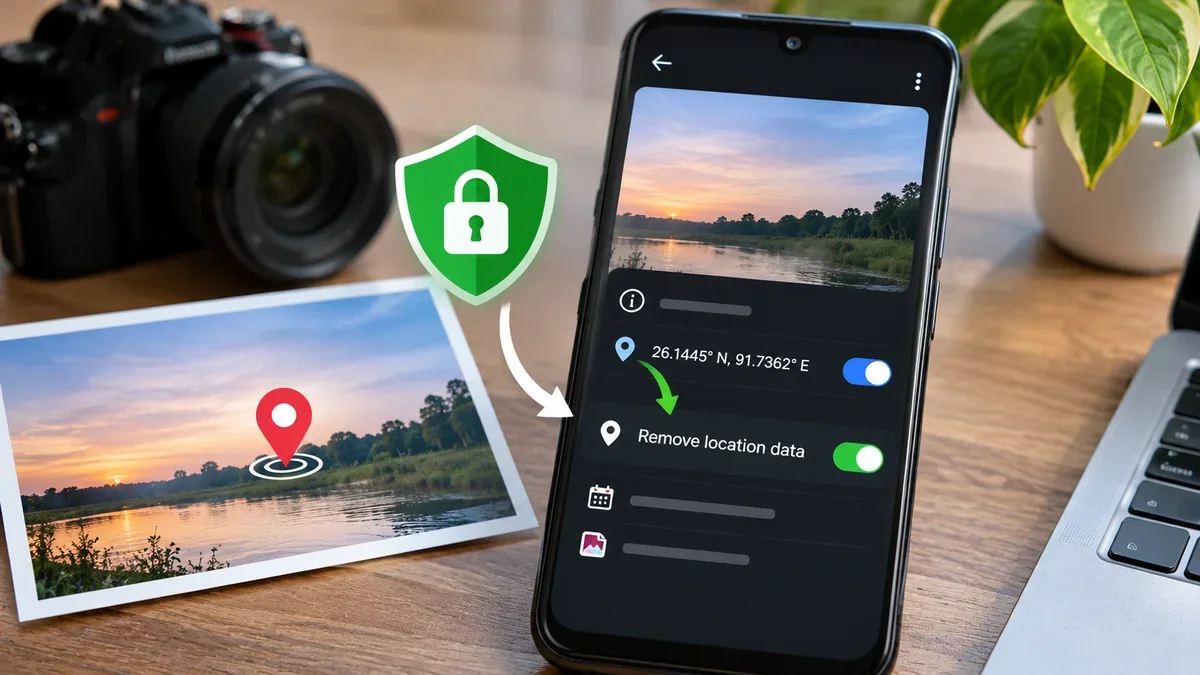
A photo can reveal more than what appears on the screen. Depending on your camera and settings, the original image file may contain GPS coordinates that show where the photo was taken. It can also include the date and time, phone or camera model, and editing details. Before you send a photo publicly, check whether it contains location information you do not intend to share.
This guide shows how to remove or avoid sharing GPS location data on iPhone, Android, Windows and Mac. It also explains an important limitation: hiding a location inside a photo app or turning off location sharing does not always remove GPS coordinates already embedded in the original file. The safest workflow is to create a clean copy and verify that copy before sending it.
What is GPS location data in a photo?
Many smartphones and cameras can save location coordinates with a picture. This is commonly called geotagging. The coordinates are usually stored in the photo’s metadata, often in EXIF fields. A photo may include latitude, longitude, altitude, the time it was captured and camera information.
Metadata is information stored alongside the visible image. It does not normally appear as text over the picture, but a recipient may be able to inspect it with a photo viewer, file properties panel or metadata tool. If precise GPS coordinates are present, someone may be able to identify the building, street, home, workplace or other place where the photo was taken.
Not every photo contains GPS data. Location is usually recorded only when the camera has permission to access location and its geotagging option is enabled. Some photo libraries can also estimate a location from landmarks or other information. An estimated location in a photo library is not necessarily the same thing as GPS coordinates embedded in the image file.
Why should you remove location data before sharing photos?
Location information can be useful for organising holiday pictures or finding photos on a map. It can also expose places you may prefer to keep private. Consider removing GPS data before publicly posting photos taken at or near:
- Your home, apartment building or regular workplace.
- A child’s school, activity centre or daily pickup location.
- A hotel, rental property or temporary holiday accommodation while you are still there.
- A private event, medical appointment or other sensitive location.
- A vehicle, valuable item or property that could attract unwanted attention.
Removing GPS metadata is only one privacy step. A street sign, house number, shop name, distinctive landmark, reflection or visible document can still reveal where a photo was taken. Review the image itself as well as its hidden information.
Check whether a photo contains GPS location information
Before removing anything, inspect the original file. This helps you understand whether the image contains a location and whether the cleaned copy has been changed as expected.
On an iPhone: Open the Photos app, open a picture and swipe up or tap the Info button. If the photo has location information, Photos can show a map or place details. The information view may also show camera details.
On Android: Open the photo in Google Photos and swipe up or tap More or Info, depending on the version. If a location is available, it may appear in the details. Remember that Google Photos can show a location estimated by its own service as well as one supplied by the camera.
On Windows: In File Explorer, right-click the image, select Properties and open the Details tab. Look for GPS or location fields. The exact fields shown depend on the file format and the metadata Windows can read.
On Mac: You can inspect a file with a metadata utility such as ExifTool. It can display location tags and other metadata without uploading the image to a website.
Remove location data from photos on iPhone
iPhone provides two useful controls: remove a location from a photo in the Photos library, or turn off location information for a particular share. These controls do different things. Choose the method that matches what you want to protect.
Method 1: Remove the location from a photo in Photos
- Open the Photos app on your iPhone.
- Open the photo whose location you want to remove.
- Tap the More button or open the photo information controls.
- Choose Adjust Info, then Adjust Location, if those options are shown on your iOS version.
- Tap No Location to remove the location information associated with that photo.
- Open the photo information again and check that the location is no longer displayed.
Apple’s Photos controls can vary by iOS version. Follow the current options shown on your device. Removing the location from the Photos library is different from simply hiding the map view or turning off location when you share a copy.
Method 2: Exclude location when sharing an iPhone photo
This is a useful option when you want to keep the original organised in your own library but send a copy without location data.
- Open Photos and select the photo or photos you want to share.
- Tap the Share button.
- Tap Options near the top of the Share Sheet.
- Under the information options, turn off Location.
- Check that the share sheet indicates that location is not included, then tap Done.
- Choose the app or sharing method and send the photo.
Apple also provides an option called All Photos Data for some sharing methods. That option can include the original file, edit history and metadata. Leave it off when your goal is to send a version without the original location information. Check the sharing options each time rather than assuming the setting is always remembered.
Method 3: Stop the iPhone Camera from adding location to new photos
- Open Settings.
- Go to Privacy & Security and then Location Services.
- Find and tap Camera.
- Set location access to Never if you do not want the Camera app to record location with future photos.
This prevents the Camera app from adding location information to new photos. It does not automatically remove GPS data from pictures you already took.
Remove location data from photos on Android
Android camera menus differ between brands and models. On many phones, the camera has a setting named Save location, Location tags, Geo-tagging, Store location data or Add location information. Turning this off prevents the camera from adding GPS location to new photos, but it does not clean existing pictures.
Method 1: Turn off camera location tagging
- Open your phone’s Camera app.
- Open Camera settings, usually using the gear icon or the settings panel.
- Look for Save location, Location tags, Geo-tagging or a similar option.
- Turn the setting off.
- Take a new test photo and check its details to confirm that the camera no longer records a location.
Google Camera calls the control Save location. Depending on the phone, you may find it under Camera settings or More settings. Other manufacturers use different labels:
| Phone brand | Possible camera setting name |
|---|---|
| Google Pixel | Save location |
| Samsung Galaxy | Location tags |
| Motorola | Save location |
| OnePlus | Store location data |
| Xiaomi and Redmi | Save location info |
| OPPO and realme | Location or Add location |
| Vivo | Geographic locations |
These labels are examples, not guaranteed menu paths for every model. If you cannot find the control, search the Camera settings for the word location or check the phone manufacturer’s support page.
Method 2: Understand the Google Photos location-removal limit
Google Photos can display and manage location details, but it cannot remove every kind of location data from every photo. Google explains that you can edit or remove locations that were estimated by Google Photos or added manually. If the location was automatically saved by your phone’s camera, Google Photos cannot edit or remove that camera-added location from the file.
To remove an estimated or manually added location in Google Photos:
- Open Google Photos and select the photo.
- Tap More and open the location editing option, if available.
- Choose Edit or Edit location.
- If the location is eligible for editing, choose Remove location.
- Reopen the photo details and confirm the displayed location has been removed.
If Google Photos says the location was added by your camera, this method will not remove it. Do not assume that a location disappearing from one screen means the original file has been cleaned.
Method 3: Control location sharing in Google Photos
Google Photos has sharing controls for location details in shared albums, links and conversations. Review the location-sharing option when you create or manage a share. In a shared album, open the album’s sharing options and turn off Share photo locations if you do not want those location details included.
This is a Google Photos sharing control, not a universal metadata-removal tool. Google notes that photos shared outside Google Photos, such as by downloading the original and emailing it, may still contain the original camera-saved location. Partner sharing also has separate behaviour. When you need a file that is safe to send through any service, create and verify a clean local copy instead of relying only on an app’s sharing setting.
Remove GPS location metadata on Windows 11 and Windows 10
Windows File Explorer includes a built-in option for removing supported file properties. It is a convenient first choice for common image formats such as JPEG, although the properties available for removal depend on the file type and the metadata Windows recognises.
- Open File Explorer and find the original photo.
- Right-click the file and choose Properties.
- Open the Details tab.
- Click Remove Properties and Personal Information.
- Choose Create a copy with all possible properties removed to preserve the original.
- Click OK and use the newly created copy for sharing.
- Right-click the copy, open Properties > Details and check whether the GPS fields are gone.
Windows may also offer a selective option to remove chosen properties from the file. Creating a separate copy is safer because it leaves the original untouched. However, “all possible properties” means the properties Windows can remove for that file. It is not a guarantee that every metadata field in every format has been erased. Verify the output, especially when the image is sensitive.
Remove GPS and other metadata on Windows or Mac with ExifTool
ExifTool is a metadata utility for reading, writing and removing metadata from many image and media formats. It is useful when you want to inspect a file more carefully or process several photos on a computer. Download it only from the official ExifTool website and keep an untouched backup of your originals.
To inspect GPS fields in a photo, open Terminal on macOS or a command prompt in the folder where ExifTool is available, then run:
exiftool -a -G1 -s -gps:all photo.jpg
Replace photo.jpg with the actual file name. The command displays GPS metadata that ExifTool can identify in the GPS group. ExifTool’s documentation warns that location information can appear in more than one metadata group or format, so a single limited query may not reveal every possible location tag.
To create a second JPEG with its metadata removed, while leaving the original file in place, use:
exiftool -all= -o cleaned-photo.jpg photo.jpg
Replace both file names as needed. This is a broader cleanup than removing GPS alone: it removes metadata fields, which may include the capture date, camera details, author information and other useful data. Keep the original if you want to preserve those details for your own records.
After creating the cleaned copy, inspect it again:
exiftool -a -G1 -s cleaned-photo.jpg
Review the output for GPS or location-related fields. If you are handling a particularly sensitive image, test the cleaned copy with a second metadata viewer as well. No single viewer necessarily displays every possible metadata format.
ExifTool is a desktop command-line utility, not a phone setting. If you are not comfortable with commands, use the iPhone sharing controls or Windows File Explorer method where supported, or ask someone technically confident to help create and verify a clean copy.
How to verify that GPS data is really gone
Do not stop after tapping Remove or turning off a location switch. Verify the exact copy you intend to send. A simple check reduces the chance of sharing the original by mistake.
- Keep the original in a separate folder or photo library.
- Make a cleaned copy using the method appropriate for your device.
- Open the cleaned copy in a metadata viewer or file properties panel.
- Look for GPS latitude, longitude, altitude, map location or other location fields.
- Check the file name and select the cleaned copy, not the original, in the sharing screen.
- If you use a messaging or social app, remember that its behaviour may differ for photos sent as images, documents, originals or cloud links.
For very sensitive images, also inspect the visible content. Removing GPS tags cannot hide a recognisable address, street sign, landmark, reflection, uniform or document in the picture.
Does WhatsApp, Instagram or Facebook remove location data automatically?
Do not depend on a social or messaging platform to remove all location information in every situation. Services may resize, recompress or process an image when you send it as a normal photo, while sending it as a document or original file can follow a different path. App features and processing rules can also change.
When privacy matters, clean the file before uploading it. If the platform offers a separate control for location information, review that setting too. A clean local copy gives you more control than assuming the receiving service will strip metadata consistently.
Other details that can reveal where a photo was taken
Even a photo with no GPS coordinates can reveal its location through visual clues. Before sharing, check the image for:
- House numbers, street names, shop signs and building names.
- School names, workplace logos, badges or event passes.
- Distinctive landmarks, road signs, bus stops and nearby businesses.
- Mail, bills, boarding passes, parcel labels or screens showing an address.
- Reflections in mirrors, windows, vehicle paint or sunglasses.
- Public posts that reveal a routine, such as the same place at the same time every day.
Crop or blur genuinely sensitive visual details before sharing, but remember that editing the visible picture and removing its metadata are separate tasks.
Common mistakes when removing photo location data
- Turning off camera location and assuming old photos are clean: The setting generally affects new photos, not files already saved.
- Removing an estimated Google Photos location and assuming the embedded GPS is gone: Camera-added location may remain unchanged in the original file.
- Turning off location in an iPhone Share Sheet but then sending the original another way: The exclusion applies to that sharing action, not every copy of the photo.
- Trusting a social app to strip metadata: Different upload and send modes may handle files differently.
- Deleting the original before checking the clean copy: Keep a backup until you have verified the result.
- Assuming no map is shown means there is no location data: Some apps may not display every metadata field.
Frequently asked questions
Can someone find my home address from a photo?
If the photo contains precise GPS coordinates, a recipient may be able to identify the place where it was taken. Even without GPS data, visible street signs, house numbers or landmarks can reveal the location.
Does taking a screenshot remove GPS information?
A screenshot usually does not carry over the original photo’s full camera EXIF metadata, but it can have its own date, device and other metadata. It also preserves any visible address or landmark in the image. Do not treat a screenshot as a guaranteed privacy-sanitisation method.
Does Google Photos remove GPS data from Android photos?
Not in every case. Google Photos can remove estimated or manually added locations, but it cannot edit or remove location information automatically added by the camera. Use a metadata-cleaning method for the actual file when necessary.
Can I remove location data without losing photo quality?
Metadata can generally be removed without changing the visible image pixels. Use a metadata utility that edits tags rather than re-saving or recompressing the picture. Some export workflows may change image quality or format, so keep the original and compare the result.
Should I remove all metadata or only GPS?
For location privacy, removing GPS fields may be enough. For a more private public copy, you may also want to remove the capture date, camera model, author and editing details. Removing all metadata can also remove useful information, so retain an original backup.
Does turning off camera location remove location from videos too?
Many camera apps use the same location setting for photos and videos, but behaviour varies by device. Check the metadata of a test video if you also record clips and need to protect their location.
Can Google Photos estimate where a picture was taken even without GPS?
Yes. Google Photos may estimate a location using landmarks and information from other photos. Such an estimate is different from GPS coordinates written by the camera. You can manage estimated locations separately in Google Photos.
Official references and further reading
| Reference | What it explains |
|---|---|
| Apple: Share photos and videos on iPhone | How to turn off Location in the iPhone share options and control which photo data is sent. |
| Apple: Manage location metadata in Photos | How to remove location information from selected photos and stop Camera location collection. |
| Google Photos: Understand, find and edit photo locations | Explains camera-added versus estimated locations and the limits on editing them. |
| Google Photos: How location data is shared | Describes location sharing controls for albums, links, conversations and partner sharing. |
| Google Pixel Camera: Change camera settings | How to turn off Save location for future photos and videos. |
| ExifTool: Official FAQ | Explains how to inspect GPS tags and why location information may be stored in more than one metadata group. |
| Windows Central: Remove personal information from files | Shows the Windows File Explorer Properties workflow for creating a copy with removable properties cleared. |
For another layer of digital privacy, see our guide on checking which Android apps can read your notifications. Review both the information stored in files and the permissions granted to apps that can access your data.
Before sharing a photo publicly, keep your original safe, remove location details from the copy you intend to send, and verify that copy. A quick check can prevent private location information from travelling with an otherwise ordinary picture.