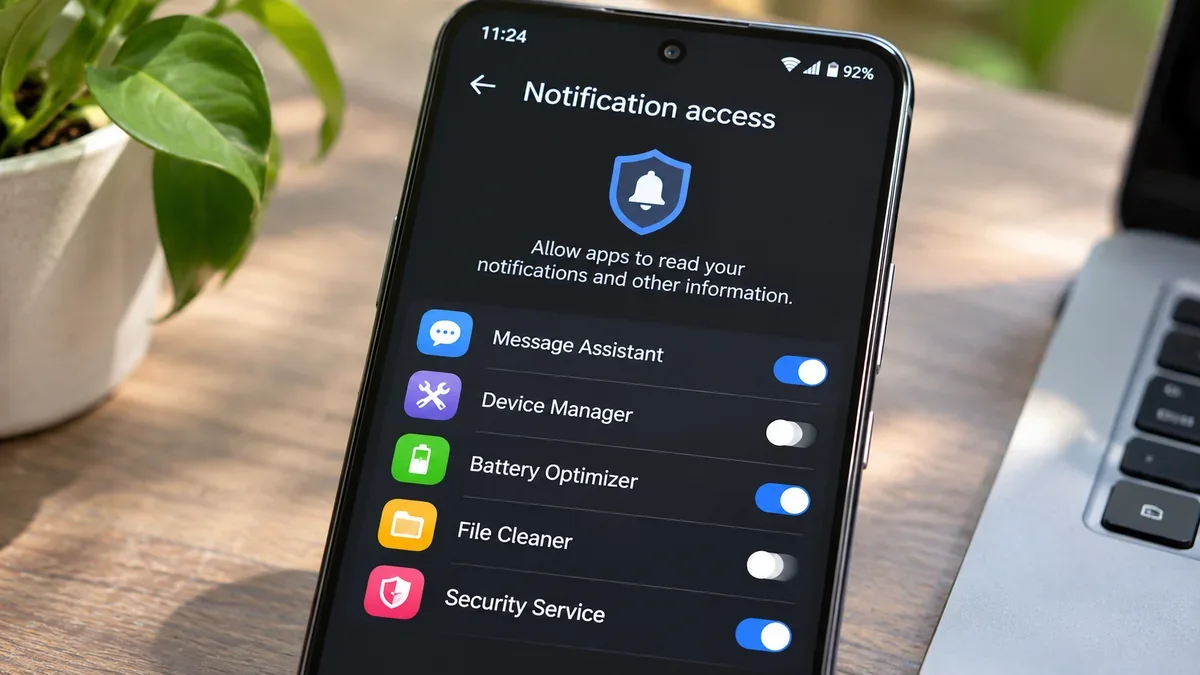
Your Android phone can show private information in notifications, including message previews, account alerts and one-time verification codes. You can choose which apps are allowed to read those notifications. The setting is separate from the permission that lets an app send notifications, and it is worth checking because some apps request access for features that do not need it.
This guide explains how to find the notification-access list, check which apps are allowed, and remove access you do not recognise or need. The steps cover Pixel and other Android phones, Samsung Galaxy, Xiaomi and Redmi, Motorola, and OnePlus. Menu names vary between manufacturers and Android versions, so the Settings search method is the best place to start.
What does notification access mean on Android?
Notification access is a special permission that allows an app to receive information about notifications created by other apps. Android provides this capability through a system service called NotificationListenerService. An app using it can be notified when other apps post or remove notifications, and can access information included in those notifications.
Depending on the phone and the app, this can expose details such as the sender’s name, message preview, delivery update, calendar alert or a verification code shown in a notification. Some versions of Android also let a notification-access app dismiss notifications or work with notification actions. This is why you should only grant access when the app has a clear purpose you understand.
Having this permission does not automatically prove that an app is uploading or storing your notifications. It means the app has been given the technical ability to receive notification information. What it does with that information depends on the app, its privacy practices and how it is built.
Notification access vs permission to send notifications
These two settings sound similar, but they do different jobs. The normal notification permission controls whether an app can show alerts on your phone. Notification access is a more sensitive special permission that can let an app read notifications from other apps.
| Setting | What it allows | Example |
|---|---|---|
| Post notifications | An app can send its own alerts, subject to your notification settings. | A shopping app shows a delivery update. |
| Notification access | An approved app can receive information about notifications posted by other apps. | A smartwatch companion app displays phone notifications on your watch. |
| SMS permission | An app can access SMS functions or messages covered by that permission. | An app requests SMS access for a supported messaging feature. |
Turning off an app’s ordinary notifications does not necessarily revoke its special notification access. Likewise, removing notification access does not automatically turn off that app’s own alerts. Review the correct setting for the problem you are trying to solve.
How to check which apps can read your notifications
The fastest method on most Android phones is to search inside Settings. This avoids relying on one menu path that may have changed after a software update.
- Open the Settings app on your Android phone.
- Tap the Settings search field or magnifying-glass icon.
- Search for Notification access.
- If that does not appear, search for Device & app notifications or Notification read, reply & control.
- Open the matching special-access screen and review the apps listed under Allowed, Permitted or an equivalent heading.
- Tap each app you do not recognise or no longer use to inspect its access and available controls.
Do not confuse this screen with the regular App notifications page. The regular page lists which apps can send alerts to you; the special-access page lists apps that may read notifications from other apps.
Where to find notification access on different Android phones
Manufacturers sometimes rename or move special permissions. Try the Settings search terms below first. If the result is not available, open the Apps section and look for a page named Special app access, Special permissions or Device & app notifications.
| Phone or software | What to search or look for |
|---|---|
| Google Pixel and near-stock Android | Search Settings for Notification access or Device & app notifications. Depending on the software version, the control may appear under Notifications or Apps and special app access. |
| Motorola | On some Android 14 models, open Settings > Notifications > Device & app notifications. Newer Motorola software may label the page Notification read, reply & control. |
| Samsung Galaxy | Search Settings for Notification access. If search does not find it, check Apps and the special-access options. One UI menu names and positions can differ by model and version. |
| Xiaomi and Redmi with HyperOS | Look under Apps and Special permissions for Device & app notifications. The HyperOS guide describes this special permission as access that allows an app to access notifications. |
| OnePlus | Check Settings > Apps > Special app access, then look for the device-and-app notification option. The exact label can vary by OxygenOS release. |
If your phone uses a work profile, parental controls or an organisation-managed device, some permissions may be controlled by the administrator and may not be editable from your personal Settings screen.
How to remove notification access from an app
Once you find the Allowed list, remove access only from apps you do not trust or whose notification-reading feature you no longer use.
- Open the notification-access or Device & app notifications screen.
- Under Allowed, select the app you want to review.
- Read the permission description and check whether Android offers separate notification categories or filters.
- Turn off Allow notification access or the equivalent switch.
- Confirm the warning by tapping Turn off, Revoke or the button shown on your phone.
- Return to the Allowed list and confirm that the app is no longer listed as allowed.
On some recent Android versions, you may be able to limit which types of notifications an app can see instead of removing access completely. For example, the screen may provide separate controls for conversations, real-time communication, alerting notifications or silent notifications. Use the narrowest access that still supports the feature you need.
If you turn off access for a smartwatch companion, notification organiser, driving assistant or automation app, that feature may stop working. You can usually return to the same screen and grant access again if you decide you need it.
Which apps may legitimately need notification access?
Some apps have a genuine reason to read notifications. The important question is whether the permission matches the feature you use and whether you trust the app developer.
- Smartwatch and wearable companion apps: May mirror selected phone notifications to a connected watch.
- Notification history or backup tools: May collect notification details so you can search or recover alerts, depending on the app’s design.
- Driving and accessibility tools: May read alerts aloud or help you interact with notifications without looking at the phone.
- Cross-device notification services: May show phone notifications on a tablet or computer that you have linked.
- Automation tools: May use notification events as triggers for workflows you configure.
These examples are not a blanket endorsement. Check the app’s official description and privacy policy, and make sure you intentionally enabled the feature. A familiar category name does not make every app in that category trustworthy.
Warning signs to look for in the Allowed list
Do not panic just because you see an app name you do not immediately recognise. Some legitimate services use a different name from the icon or brand you remember. Verify the app before making a decision.
- An app you do not remember installing has notification access.
- A simple wallpaper, torch, calculator or photo-filter app requests access without explaining a feature that needs it.
- The app came from an unknown website or an unofficial app store and you cannot verify its developer.
- The app’s name, icon or developer information does not match what you expected.
- You no longer use the feature that originally required the permission.
- The app’s privacy policy does not explain how notification information is handled.
A warning sign is a reason to investigate, not proof of malware. Open the app’s App info page to check its full name, developer details and installation source. If you cannot verify why it needs access, revoke the permission and consider uninstalling it.
Protect message previews and verification codes too
Notification access is only one part of notification privacy. A person who can see your lock screen may also read message previews without unlocking the phone. For sensitive accounts, reduce the information shown on the lock screen as well.
- Open Settings and search for Notifications on lock screen or Sensitive notifications.
- Choose an option that hides sensitive content while the phone is locked, if your device provides it.
- Review notification previews in messaging, email and banking apps individually.
- Keep your screen lock enabled and avoid sharing your unlock PIN or password.
- Install Android and app updates from the phone’s official update settings and trusted app stores.
Hiding lock-screen previews protects information from someone looking at the screen. It is not a substitute for reviewing which apps have notification access, because an app with that special permission may receive notification information independently of what is displayed on the lock screen.
What to do if you find an app you do not trust
If an unfamiliar app has notification access, take a calm, methodical approach:
- Note the exact app name and, if possible, take a screenshot of its App info page.
- Turn off its notification access.
- Check its developer and installation source in App info or the app store listing.
- If you cannot verify it or do not need it, uninstall it using Settings > Apps.
- Run a Google Play Protect scan from the Play Store: tap your profile picture, open Play Protect and choose Scan.
- Review other sensitive permissions, such as Accessibility, usage access, display over other apps, device administrator and install unknown apps. These are separate permissions and should be checked separately.
If you suspect that an account itself has been compromised, use a trusted device to review account security, sign out of unfamiliar sessions and change the affected password. Do not assume that finding notification access alone means your passwords have been stolen.
Common problems and troubleshooting
Notification access does not appear in Settings. Search for Device & app notifications, Notification read, reply & control or Special app access. The label depends on the Android release and manufacturer. Also check whether your phone is managed by a workplace or school.
An app is missing from the list. Some apps only appear after they declare a notification-listener feature or after you open the app and start its setup process. The list is not the same as the list of every app installed on your phone.
I turned off notification access but the app still sends alerts. That is expected if its normal notification permission remains enabled. Open Settings > Notifications > App notifications and change the app’s alert settings separately.
My smartwatch stopped showing notifications. Its companion app may need notification access to mirror alerts. Check the watch app’s setup instructions and grant access only if you still use and trust the feature.
I cannot switch off the permission. Check whether the device is managed, whether the app is a system or device-management service, and whether a work profile policy is restricting changes. Do not try to bypass organisation security controls on a managed device.
Frequently asked questions
Can an app read my WhatsApp or other message notifications?
An app with notification access may receive the information included in notifications from messaging apps, subject to the notification content and Android’s filters. If a message preview is hidden or the app does not include its text in the notification, the listener may not receive that hidden message text.
Can an app with notification access see OTP codes?
It may be able to read a one-time code if the code is included in a notification that the app can access. This is one reason to be careful about granting this permission to unknown apps. Notification access alone does not give an app permission to read every SMS stored on the phone; SMS access is a separate permission.
Does notification access mean the app is spying on me?
Not necessarily. Some legitimate features need to process notifications. The permission is sensitive, however, so you should recognise the app, understand why it needs access and trust its developer.
Can I see which apps have notification access without installing another app?
Yes. Android includes a built-in special-access setting. Search your phone’s Settings for Notification access or Device & app notifications.
Does turning off notification access delete data the app already collected?
No. Revoking access stops future notification-listener access, but it does not guarantee that information already collected by the app is deleted. Check the app’s privacy policy or account settings for its data deletion process.
Is notification access the same as Accessibility access?
No. They are separate special permissions with different capabilities. Review both carefully, but do not assume that removing one automatically removes the other.
Official references
Android menu names can change after updates. Use these official references to confirm the behaviour and find the relevant controls for your device.
| Reference | What it explains |
|---|---|
| Android Developers: NotificationListenerService | How Android notification listeners receive notification events and interact with notifications. |
| Motorola: Manage notification privacy | How to review allowed apps, filter notification types and turn off notification access on supported Motorola software. |
| Google Android Help: Control notifications | How to manage app notifications and lock-screen notification privacy. |
| Xiaomi: HyperOS user guide | Explains the Device & app notifications special permission. |
| Samsung: Manage app notifications and permissions | Shows how Galaxy menu layouts and app permission controls can vary. |
Checking notification access takes only a few minutes and can help you reduce unnecessary exposure of private alerts. Keep access enabled only for apps you recognise, trust and actively use for a feature that needs it.