A PDF can reveal more than the words and images visible on its pages. The file may also contain an author’s name, the software used to create it, creation and modification dates, comments, attachments, form data, hidden layers or other information that you did not intend to share. Before sending a PDF outside your organisation, inspect its properties and decide whether any hidden information should be removed.
This guide explains how to check PDF metadata, remove document-level metadata on Windows or Mac with a free local Python tool, and use Adobe Acrobat Pro when you need a broader hidden-information cleanup. It also explains why metadata removal is not the same as redaction, why some online cleaners are unsuitable for confidential files, and how to verify the final PDF.
What is PDF metadata?
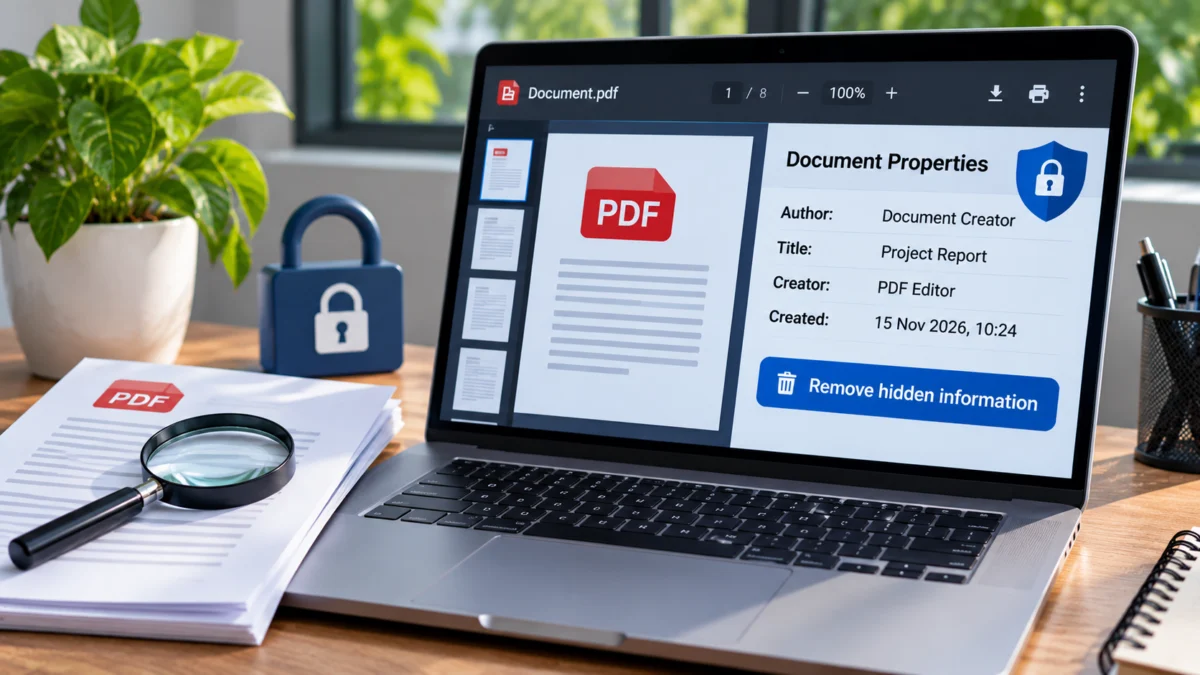
Metadata is information stored inside a file that describes the document rather than its visible page content. A PDF can contain two common document-level metadata systems: the older Document Information dictionary and XMP (Extensible Metadata Platform) metadata. A reader or PDF editor may show information from either location.
Depending on how the PDF was created, metadata may include:
- Author: A person’s name or account name copied from the software used to create the document.
- Title and subject: The document name or a short description.
- Keywords: Terms added by the author or publishing software.
- Creator: The application that originally created the document, such as a word processor or design tool.
- Producer: The software or library that generated the PDF file.
- Creation and modification dates: Timestamps recorded by the application.
- Custom properties: Additional information inserted by a workflow or document system.
These fields are not automatically dangerous. They can help teams organise files, track versions and manage records. They become a privacy concern when a document is shared publicly or with someone who does not need to know the author’s identity, internal software or working timeline.
Metadata is not the only hidden information in a PDF
Removing the author and date fields does not necessarily remove every piece of sensitive information from a PDF. A PDF is a container that can hold content and interactive objects in addition to its document properties.
| Information type | Example | Why to check it |
|---|---|---|
| Document metadata | Author, title, creator, producer, dates and XMP properties. | May identify the person or software behind the file. |
| Comments and annotations | Review notes, sticky notes, highlights and replies. | May reveal internal feedback or unfinished decisions. |
| File attachments | A spreadsheet, image or other file embedded inside the PDF. | May contain information that is not visible on the pages. |
| Form data | Filled fields, calculations or stored form values. | May contain personal or financial details. |
| Hidden layers and text | Optional content, invisible text or content covered by another object. | May expose information that appears absent from the page. |
| Scripts and actions | JavaScript, automatic actions or external links. | Can affect document behaviour and should be reviewed in sensitive files. |
| Previous revisions | Older content retained by an incremental PDF save. | Earlier information may remain recoverable in some files. |
Adobe’s documentation lists metadata, comments, attachments, hidden layers, form data, scripts, links and other categories that may need inspection. That is why a simple metadata editor is not a complete PDF sanitization tool. See Adobe’s list of PDF content that may need redaction or removal.
Why should you check PDF metadata before sharing?
Consider a job application PDF created on a family computer. Its visible pages may show only a resume, but the document properties could contain a different account holder’s name or an old file title. A business proposal could reveal an internal project name or the application used to generate it. A document prepared for public release may still contain comments from the review stage.
Review the PDF before sharing it when it contains:
- Personal identity details, addresses, contact numbers or financial information.
- Business proposals, quotations, contracts or internal reports.
- Drafts that have passed through several reviewers.
- Documents intended for public download or website publication.
- Scanned records or forms with embedded attachments or comments.
- Information about a client, employee, student or another person.
Metadata cleanup is only one part of document privacy. Always inspect the visible pages too, because removing metadata will not hide an address, account number or name printed in the document.
How to check PDF metadata before removing it
Start by inspecting the file. This lets you identify what is present and decide whether you need to remove only basic properties or perform a broader document cleanup.
Method 1: View document properties in Adobe Acrobat Reader
Adobe Acrobat Reader can display basic PDF document properties without requiring you to edit the file.
- Open the PDF in Adobe Acrobat Reader.
- Open the File menu and choose Properties or Document Properties, depending on the version.
- Open the Description tab.
- Review fields such as Title, Author, Subject, Keywords, Creator and PDF Producer.
- Check the dates and any other information shown in the properties window.
- Open Additional Metadata, if available, to inspect more detailed XMP information.
Reader is useful for inspecting metadata, but it does not provide the complete PDF sanitization workflow described later in this guide. Do not assume that changing a visible file name or hiding a properties panel removes information stored inside the PDF.
Method 2: Inspect metadata with a free local Python tool
If you prefer a free, offline method, the Python library pikepdf can read the PDF’s document information and XMP metadata. The example below prints the document information fields and reports whether the PDF contains an XMP metadata stream. It processes the file on your computer rather than uploading it to a website.
First, install Python if it is not already available. Open Windows Terminal or Command Prompt and install pikepdf:
py -m pip install --upgrade pikepdfSave the following code in a file named inspect_pdf_metadata.py in the same folder as your PDF:
from pathlib import Path
import pikepdf

pdf_path = Path("document.pdf")

if not pdf_path.is_file():
    raise FileNotFoundError(f"PDF not found: {pdf_path}")

with pikepdf.open(pdf_path) as pdf:
    print("Document Information:")
    for key, value in pdf.docinfo.items():
        print(f"{key}: {value}")

    if "/Metadata" in pdf.Root:
        print("\nXMP metadata stream: present")
        print("Use a PDF metadata viewer or Acrobat's Additional Metadata panel")
        print("to inspect the XMP properties.")
    else:
        print("\nXMP metadata stream: not present")
Replace document.pdf with your actual file name. Open Terminal in that folder and run:
py inspect_pdf_metadata.pyThe script displays the older Document Information dictionary and confirms whether a document-level XMP stream exists. It does not inspect every page object, annotation, attachment or hidden item. For a full document review, use a dedicated PDF inspection or sanitization tool.
Remove PDF metadata using Adobe Acrobat Pro
Adobe Acrobat Pro has a built-in Sanitize document feature. It is the more suitable option when you need to remove hidden information beyond the basic author and date fields, including comments, attachments and other hidden content. This feature is part of Acrobat Pro; it is not the same as opening a PDF in the free Reader application.
Method 1: Remove all hidden information
Use this when you have reviewed the document and want Acrobat Pro to remove the hidden information categories it identifies.
- Make a separate copy of the original PDF before editing.
- Open the copy in Adobe Acrobat Pro.
- Select All tools and choose Redact a PDF.
- In the left panel, select Sanitize document.
- In the sanitization dialog, choose Remove all.
- Choose a new file name and a safe location for the cleaned PDF.
- Select Save.
- Open the saved copy again and inspect its properties and content.
Acrobat’s current instructions describe this workflow for removing hidden information before distributing a PDF. Removing all identified hidden items can also remove useful features, comments, form information or attachments. Review the result carefully before sending it. Read Adobe’s current PDF sanitization instructions.
Method 2: Selectively remove hidden information
Sometimes you want to keep a PDF’s bookmarks, forms or other useful features while removing only specific information. Acrobat Pro also provides a selective option.
- Open the PDF in Acrobat Pro and select All tools > Redact a PDF.
- Select Sanitize document from the left panel.
- Choose Selectively remove.
- Review the categories displayed in the Hidden Information panel.
- Tick only the categories you intend to remove.
- Select Remove.
- Save the cleaned PDF using a new file name.
Selective removal gives you more control, but it also requires you to understand what each category contains. For a document with confidential material, review all hidden-information categories rather than assuming that the metadata option covers comments, attachments or previous content. Adobe’s guide to selective removal.
Remove visible confidential information with proper redaction
Metadata removal and redaction are different operations. If a PDF visibly contains a home address, phone number, signature, account number or confidential paragraph, deleting the author and creation date will not remove that information.
In Acrobat Pro, use the Redact a PDF tool to mark the text or images that must be removed, then apply the redactions. Save the resulting file as a new PDF. A black rectangle drawn over text with a drawing or annotation tool is not a safe redaction: the original text may still be present underneath and could be selected or extracted.
- Open the PDF in Acrobat Pro.
- Select All tools > Redact a PDF.
- Choose the option to mark text and images for redaction.
- Select the confidential words, numbers or images that must be removed.
- Review every marked area before applying the redactions.
- Select Apply and confirm the permanent removal.
- Use the sanitization option as an additional step if hidden information also needs to be removed.
- Save the result under a different file name.
Once a redaction is applied and saved, the selected content is permanently removed from that output document. Keep the original in a restricted location if you still need it. Adobe explains the redaction process separately from sanitization because visible content and hidden data require different checks. See Adobe’s PDF redaction instructions.
Free offline method: Remove basic PDF metadata with pikepdf
If you do not have Acrobat Pro, pikepdf is an open-source Python library that can remove the two common document-level metadata locations: the older Document Information dictionary and the XMP metadata stream. The following example creates a new PDF and leaves the original file unchanged.
This method removes basic document-level metadata only. It is not a full PDF sanitizer. It does not promise to remove comments, attachments, form values, JavaScript, hidden page content, embedded images with their own metadata or every previous revision. Use Acrobat Pro or a suitable comprehensive document-sanitization workflow when those items matter.
Install pikepdf if you have not already done so:
py -m pip install --upgrade pikepdfSave this script as remove_pdf_metadata.py in the folder containing your original PDF:
from pathlib import Path
import pikepdf

source = Path("document.pdf")
output = Path("document-cleaned.pdf")

if not source.is_file():
    raise FileNotFoundError(f"Input PDF not found: {source}")

if source.resolve() == output.resolve():
    raise ValueError("Choose a different output file name to protect the original.")

with pikepdf.open(source) as pdf:
    # Remove the document-level XMP metadata stream, if present.
    if "/Metadata" in pdf.Root:
        del pdf.Root["/Metadata"]

    # Remove the legacy PDF Document Information dictionary, if present.
    if "/Info" in pdf.trailer:
        del pdf.trailer["/Info"]

    # Write a separate output file. Do not overwrite the original.
    pdf.save(output, fix_metadata_version=False)

# Reopen the output and verify these two metadata locations.
with pikepdf.open(output) as cleaned:
    xmp_removed = "/Metadata" not in cleaned.Root
    info_removed = "/Info" not in cleaned.trailer

print(f"Saved: {output.resolve()}")
print(f"Document-level XMP removed: {xmp_removed}")
print(f"Document Info removed: {info_removed}")

if not (xmp_removed and info_removed):
    raise RuntimeError("Metadata verification did not pass.")
Run it from the same folder:
py remove_pdf_metadata.pyThe script should create document-cleaned.pdf. Open the new file and check its document properties again. Keep the original until you have confirmed that the output opens correctly and contains the pages and features you need.
pikepdf documents both metadata locations and the removal operation in its official metadata guide. Its documentation also explains that saving a PDF can update metadata unless the relevant save option is controlled, which is why the example uses fix_metadata_version=False. Read the pikepdf metadata documentation.
Why ExifTool is not the best PDF sanitizer
ExifTool is an excellent tool for inspecting and editing metadata in many file formats. However, its own documentation warns that metadata changes to PDF files are reversible because the original metadata is not actually deleted from the file. That makes it unsuitable as the only method for securely sanitizing a confidential PDF.
You can use ExifTool to inspect document properties or investigate a PDF, but do not rely on an ExifTool metadata-removal command as proof that previous metadata cannot be recovered. For basic document-level metadata removal, use a PDF-aware rewrite workflow such as the pikepdf example above and verify the result. For broader sanitization, use a tool designed to inspect and remove hidden PDF content. ExifTool official documentation explains this PDF-specific limitation.
Can you use an online PDF metadata remover?
Some websites claim to remove PDF metadata directly in the browser, while others require you to upload the file to their server. These services are not interchangeable. A tool that runs locally in your browser may avoid sending the PDF to a remote server, but you should verify that claim and understand its limitations. A server-based converter receives a copy of the document.
For sensitive files such as identity documents, bank statements, employment records, legal papers, contracts or medical records, prefer an offline tool that you trust. Avoid uploading confidential PDFs to an unknown website simply because it offers a free metadata remover. Check its privacy policy, processing method, retention policy and whether it handles the hidden content you need to remove.
Even an offline metadata-only tool is not automatically a complete PDF sanitizer. Choose the workflow based on whether you need to remove only author and date fields or also comments, attachments, hidden text and visible confidential content.
Important: Do not sanitize a digitally signed official PDF
A digitally signed PDF uses a cryptographic signature to help prove that the document has not been changed since it was signed. Editing, rewriting or sanitizing the file can cause its signature validation to fail or show that the document was modified after signing.
Do not remove metadata from an official digitally signed certificate, government record, DigiLocker document, bank statement or contract and then submit the altered copy as if it were still the original signed document. Keep the issued file unchanged. If you need a version with different metadata, ask the issuing authority or original signer to provide a new document and sign it again where required.
Adobe explains that changing a signed PDF can require an unsigned original or a new copy from the signer. Read Adobe’s guidance about signed PDF limitations.
How to verify a cleaned PDF before sharing
Do not assume that a tool succeeded just because it displayed a completion message. Inspect the exact output file that you intend to send.
- Save the cleaned file with a new name and keep the original separate.
- Open the new PDF in a reader and check that every required page displays correctly.
- Open Document Properties and review the author, title, creator, producer and dates.
- If you used a metadata-only tool, confirm that the Document Information and XMP fields you targeted are no longer present.
- Check comments, attachments, bookmarks, form fields, layers and other hidden-content categories when those matter.
- Search the document for confidential words or numbers that should not be present.
- Check images and scanned pages visually for addresses, signatures, account numbers or other sensitive information.
- If you redacted content, try selecting or searching for the removed text in the output copy.
- Check digital signatures if the document is meant to remain signed. Do not submit a modified signed file as an authentic original.
For a document that will be published or distributed widely, have a second person review the final version. A quick independent check can catch a comment, attachment or visible detail that the original editor overlooked.
Common mistakes when removing PDF metadata
- Changing the file name only: Renaming a PDF does not change the metadata stored inside it.
- Removing only the Author field: The PDF may still contain XMP data, software details, dates and custom properties.
- Covering text with a black rectangle: This may hide the words visually while leaving the underlying text available.
- Assuming metadata removal deletes comments and attachments: Document properties and hidden content are different categories.
- Overwriting the only original copy: Always create a separate cleaned file and verify it before removing the source.
- Editing a digitally signed certificate: Rewriting the PDF can invalidate its signature or change its validation status.
- Uploading a confidential PDF to an unknown service: Use a trusted offline workflow when the contents are private.
- Assuming the file is clean because it opens correctly: A PDF can display normally while still containing hidden information.
Frequently asked questions
What metadata can a PDF contain?
A PDF may contain an author name, title, subject, keywords, creator application, PDF producer, creation date, modification date, custom properties and XMP metadata. It can also contain comments, attachments, form information and other hidden content.
Can I remove PDF metadata for free?
Yes. A local Python library such as pikepdf can remove the document-level Document Information dictionary and XMP metadata stream. This is a basic metadata cleanup, not a complete removal of every hidden PDF element.
Does Adobe Acrobat Reader remove hidden PDF information?
Reader can display document properties, but the full Sanitize document workflow is available in Acrobat Pro. Use a separate PDF-aware tool if you need a free local metadata-only method.
Does removing PDF metadata remove comments and attachments?
Not necessarily. Metadata removal and hidden-content sanitization are different operations. Review comments, attachments, forms and layers separately, or use a comprehensive PDF sanitizer.
Can someone see who created a PDF?
They may be able to see an author, creator or producer field in the PDF’s properties. The values depend on the source document and software used to create or convert it.
Does converting a PDF to another format remove all hidden information?
Not reliably. Conversion may drop some metadata but can preserve visible content, embedded images or other information. Inspect the converted file and do not treat conversion as a guaranteed sanitization method.
Will removing metadata affect PDF quality?
Removing document-level metadata does not normally change the visible page content. However, broader sanitization can remove interactive elements, comments, attachments, forms or other features. Keep the original and verify the output.
Can I remove metadata from a digitally signed PDF?
Do not alter an official signed PDF if you need to preserve its signature and status. Ask the issuing authority or signer for a new copy if a sanitized version is required.
Does ExifTool completely remove PDF metadata?
No. ExifTool’s official documentation says its PDF metadata writes are reversible because the original metadata is not actually removed. Do not rely on it as a secure PDF sanitizer.
Official references and documentation
| Reference | What it explains |
|---|---|
| Adobe: Sanitize PDFs in Acrobat Pro | How to remove all or selectively remove hidden information from a PDF. |
| Adobe: Redact sensitive content in PDFs | How to permanently remove visible confidential text and images. |
| pikepdf: PDF metadata documentation | Explains XMP and Document Information metadata and how to remove both. |
| ExifTool: Official documentation | Metadata inspection and editing capabilities, including its limitation for PDF metadata removal. |
| Adobe: Signed PDF limitations | Explains why editing signed documents may require an unsigned original or a newly issued copy. |
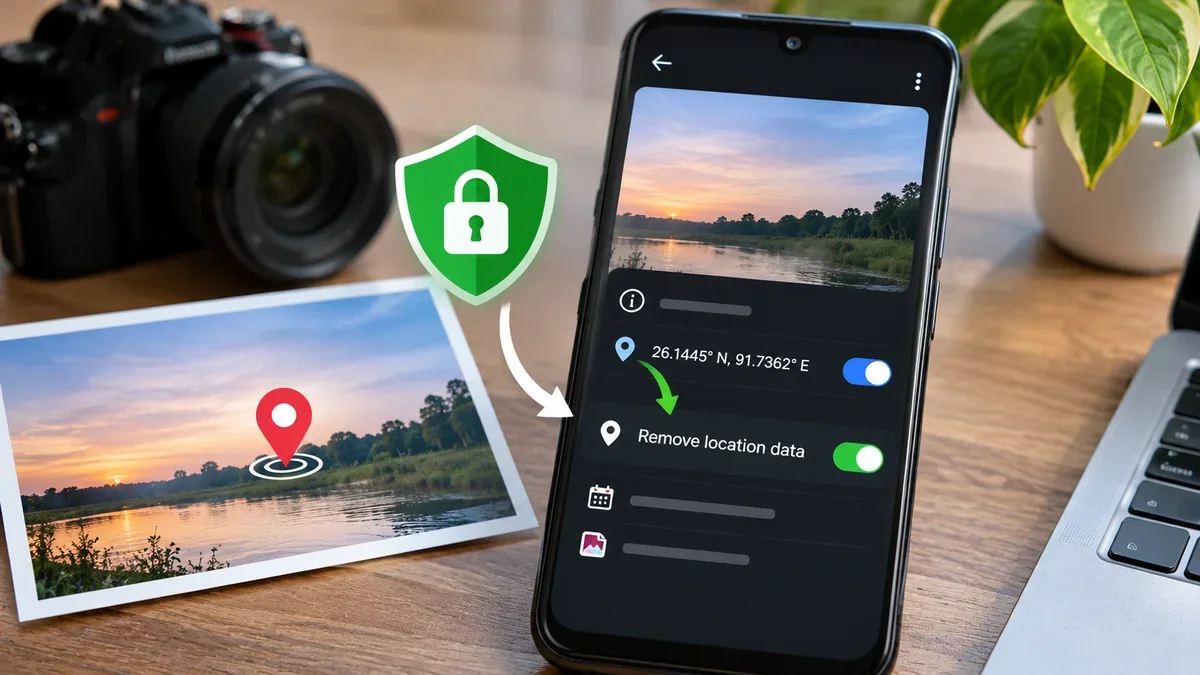
For another practical guide to hidden file information, see how to remove GPS location data from photos before sharing. Both workflows help you check what a file may reveal beyond its visible content.
Before sharing a PDF, inspect its properties, remove only the information that should not be disclosed, and check for comments, attachments and visible confidential content. Keep the original safe, verify the new file and never alter an official digitally signed document when its signature needs to remain valid.