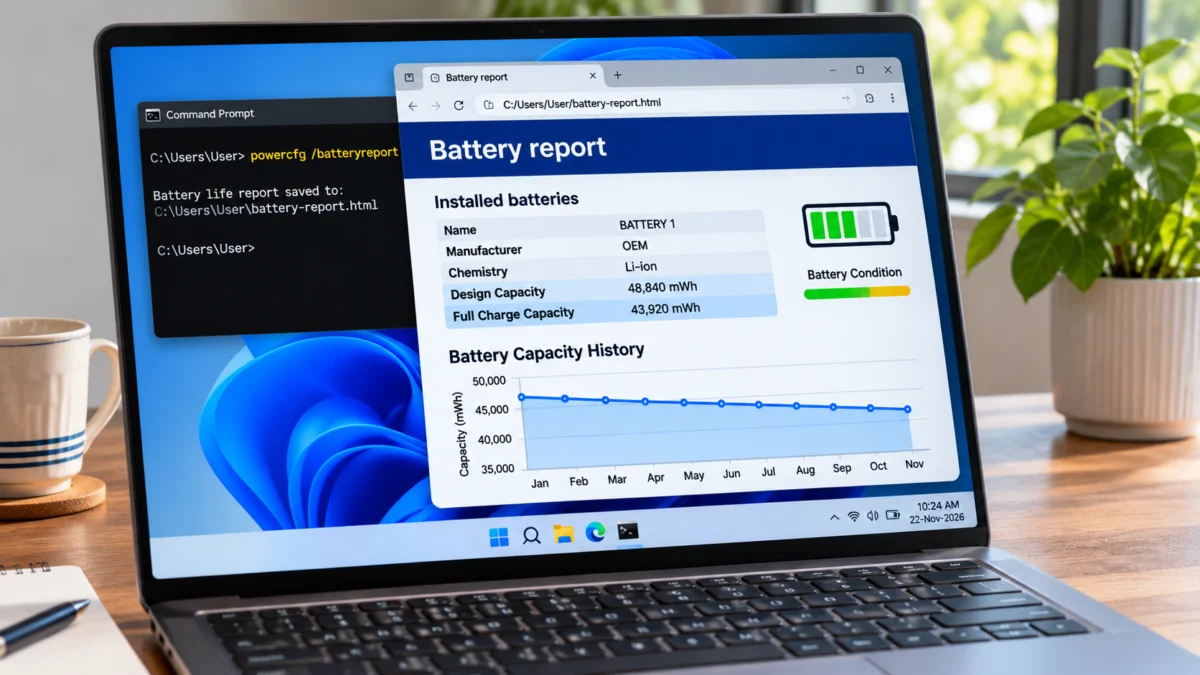
If your laptop shuts down sooner than it used to, loses charge quickly or needs to stay connected to the charger, its battery may have lost some of its original capacity. You do not need to install a third-party battery checker to make a first assessment. Windows 11 includes a built-in command called powercfg that can create an HTML battery report with information about the installed battery, recent usage and estimated capacity.
This guide shows how to generate the report, find the important battery figures, calculate an estimated capacity-retention percentage and understand what the results mean. It also explains why cycle count or capacity information may be missing, when to use your laptop manufacturer’s diagnostic tool, and which battery symptoms need attention.
What is a Windows battery report?
A Windows battery report is an HTML file generated by the Power Configuration command-line utility. It summarises battery information and usage data that Windows receives from the laptop’s hardware and firmware. Microsoft recommends starting with the Installed batteries, Recent usage and Battery usage sections when reviewing the report.
The report can help you compare a battery’s original design capacity with its reported full-charge capacity. Depending on the laptop and the information its firmware provides, it may also show battery usage history, capacity history, cycle count and estimated battery life.
The report is useful for a first health check, but it is not a laboratory test. The capacity figures are reported by the battery-management hardware. Windows cannot guarantee that every laptop exposes every field or that an estimate perfectly predicts real-world runtime.
What you need before generating the report
- A Windows 11 laptop with a battery installed and detected by Windows.
- Access to the Command Prompt or Windows Terminal.
- A few seconds to generate the HTML report.
- A web browser to open the saved report.
You do not need to download a battery-health application for this basic check. Microsoft documents powercfg /batteryreport as a built-in Windows command that generates an HTML report.
How to generate a laptop battery report in Windows 11
Follow these steps to create the report using Command Prompt:
- Click the Start button or press the Windows key.
- Type Command Prompt in the search box.
- Right-click Command Prompt and choose Run as administrator.
- Select Yes if Windows asks for permission.
- Type the following command, including the space between
powercfgand/batteryreport.
powercfg /batteryreport- Press Enter and wait for Windows to generate the report.
- Read the message that confirms where the battery report was saved.
- Open File Explorer and go to the folder shown in Command Prompt.
- Double-click the HTML report to open it in your default web browser.
The command normally creates a file named battery-report.html in the current working folder. The exact location is displayed by the command, so use that path rather than assuming it was saved to the Desktop.
Save the battery report to a specific location
You can choose a file path with the /output option. For example, the following command saves the report in your Windows user-profile folder:
powercfg /batteryreport /output "%USERPROFILE%\battery-report.html"After the command completes, open File Explorer, enter %USERPROFILE% in the address bar and press Enter. Look for battery-report.html and open it in your browser.
If you want to review a shorter period, Powercfg also supports a duration option. For example, this command asks Windows to analyse the previous 30 days:
powercfg /batteryreport /duration 30Use the standard command if you want the report’s available history. The duration option changes the number of days covered by the report; it does not make the battery healthier or recalibrate the battery.
How to read the Installed batteries section
The Installed batteries section is usually the best place to begin when you want to estimate battery wear. It may show fields such as battery name, manufacturer, chemistry, design capacity, full charge capacity and cycle count.
| Field | What it means | Why it matters |
|---|---|---|
| Name and manufacturer | The battery identifier and reported manufacturer. | Helps identify which battery Windows is reporting, especially on devices with more than one battery. |
| Chemistry | The battery type reported by the hardware, often Li-ion. | Provides basic information about the battery technology. |
| Design capacity | The battery’s original rated energy capacity when new, normally shown in mWh. | Acts as the reference value for comparing the current reported capacity. |
| Full charge capacity | The amount of energy the battery-management system currently estimates the battery can hold at a full charge. | Compare it with design capacity to estimate how much capacity remains. |
| Cycle count | The number of charge/discharge cycles reported by the battery hardware. | Provides additional context about battery use, but should not be treated as a replacement decision by itself. |
Some fields may be blank, unavailable or reported as zero. This does not automatically mean the battery has failed. Windows depends on the device firmware and battery hardware to expose these values. Microsoft documents the battery information fields that a Windows platform can provide, including design capacity, full-charge capacity and cycle count.
How to calculate estimated laptop battery health
Windows does not always show a single universally comparable battery-health percentage. You can calculate an estimated capacity-retention percentage from the two capacity values in the Installed batteries section.
Estimated capacity retention = (Full Charge Capacity ÷ Design Capacity) × 100
The estimated capacity loss is the difference between 100% and the capacity-retention result.
Estimated capacity loss = 100% − Estimated capacity retention
For example, imagine the report shows these values:
| Battery measurement | Example value |
|---|---|
| Design Capacity | 50,000 mWh |
| Full Charge Capacity | 41,500 mWh |
| Estimated capacity retention | 83% |
| Estimated capacity loss | 17% |
Calculation: 41,500 ÷ 50,000 × 100 = 83%. In this example, the battery’s reported full-charge capacity is about 83% of its original design capacity.
This percentage is an estimate based on the figures reported by the laptop. It is not an official Microsoft pass/fail rating, a warranty test or a guarantee of how many hours the laptop will run. Do not use one percentage alone to decide whether a battery must be replaced.
What is the difference between Design Capacity and Full Charge Capacity?
Design Capacity is the reference energy capacity the battery was designed to provide when new. Full Charge Capacity is the amount of energy the battery-management system currently estimates it can store when fully charged.
Rechargeable lithium-ion batteries lose capacity as they age and go through use. This is why a laptop that once lasted eight hours may provide noticeably less runtime even when the battery indicator reaches 100%. Microsoft explains that battery capacity decreases over time and that a lower capacity can mean charging the laptop more frequently.
Compare the two values using the same unit. If one field is displayed in mWh and the other in Wh, convert them before calculating the percentage. For example, 50,000 mWh is the same as 50 Wh.
How to understand Battery Capacity History
Battery Capacity History, when available, shows how reported full-charge capacity has changed over time. It is useful because it helps you see a trend instead of judging the battery from one reading.
Look for the following patterns:
- Mostly stable capacity: The reported full-charge capacity has changed only slightly across the recorded period.
- Gradual decline: The reported capacity has decreased over time. Some decline is expected as a rechargeable battery ages.
- Sudden change: A large difference between two readings may be worth checking again. Battery-management estimates, firmware updates or a replacement battery can affect the reported values.
- Very short history: Windows may have limited recorded data if the installation is new, the battery was replaced or the device has not collected much history.
Do not interpret every small variation as a battery fault. Compare several readings and, where possible, confirm the current result with your laptop manufacturer’s diagnostic utility.
How to use Recent Usage and Battery Usage sections
The capacity fields help estimate wear, while the usage sections help you understand how the laptop has been using its battery.
Recent usage can show recent power states, start times, source (battery or AC power) and the remaining capacity recorded during those periods. Use it to check when the laptop was running on battery and whether the recorded usage matches your normal routine.
Battery usage provides a view of battery drain across recent periods. It can help you spot sessions when the charge dropped quickly, but it does not always identify the exact application or hardware component responsible for the drain.
Usage history, when present, can help compare how much time the device has spent on battery power and connected to AC power across the available history.
Battery life estimates, where present, provide estimates based on the recorded usage pattern. Treat these figures as approximate. Screen brightness, performance mode, Wi-Fi, background activity, connected devices, temperature and the workload can all change actual runtime.
How to check battery cycle count in Windows 11
Some Windows battery reports include a Cycle Count field under Installed batteries. The value is supplied by the laptop’s battery hardware and firmware. Microsoft defines the cycle count as the number of charge/discharge cycles the battery has experienced. If the battery does not support a cycle counter, Windows’ battery information interface can report zero for that field.
This means that a blank or zero cycle count is not necessarily a fault. It may simply mean that the laptop does not expose a supported cycle counter through the information interface Windows is using.
Also remember that cycle count is only one part of battery condition. Two batteries with similar cycle counts can have different remaining capacity because batteries age with both use and time, and operating temperature and charging conditions also matter.
What if the battery report shows missing or incorrect information?
If the report does not show design capacity, full-charge capacity or cycle count, first check whether Windows detects the battery correctly. Do not assume that an empty field proves that the battery is damaged.
- Restart the laptop and generate a fresh report.
- Open Windows Settings and go to System → Power & battery. Check whether Windows displays a battery level and charging status.
- Open Device Manager and expand the Batteries category. Check whether the expected battery-related devices appear without a warning symbol.
- Install relevant Windows updates and check your laptop manufacturer’s support page for recommended BIOS, firmware and chipset updates for your exact model.
- Run the manufacturer’s built-in battery diagnostic, if one is available, and compare its result with the Windows report.
- If the battery is not detected, the laptop shuts down unexpectedly, or readings remain implausible, contact the manufacturer’s support service.
Windows receives battery information through the device’s firmware and ACPI battery interface. A laptop may therefore expose incomplete or inaccurate information if its firmware, battery controller or supporting drivers do not report the expected data.
How to tell whether poor battery life is caused by battery wear or power usage
A laptop can have a battery with reasonable capacity retention and still run down quickly because the system is consuming more power than usual. Conversely, a worn battery may provide short runtime even when the laptop is not doing demanding work.
| What you notice | What to investigate |
|---|---|
| Full Charge Capacity is much lower than Design Capacity and runtime is shorter than before. | Battery wear is a likely contributor. Confirm with the manufacturer’s battery diagnostic and review the capacity history. |
| Capacity figures look stable, but battery percentage drops quickly during heavy work. | Check CPU/GPU-intensive apps, games, video editing, screen brightness and performance mode. |
| The laptop loses a lot of charge while sleeping. | Review sleep behaviour, connected standby and devices or apps that keep the laptop active. |
| The laptop shuts down suddenly even when Windows shows charge remaining. | Check for battery faults, inaccurate reporting or firmware issues. Run the manufacturer’s diagnostics. |
| The battery percentage changes sharply after restarting or reconnecting power. | Generate a fresh report and check the manufacturer’s diagnostic tool. A displayed percentage is an estimate, not a direct measurement of remaining runtime. |
If you suspect that background processes or power settings are contributing to poor battery life, Windows also provides the separate powercfg /energy diagnostic. Microsoft describes this command as an analysis of common energy-efficiency and battery-life problems. It creates a different report and is not a substitute for the battery-capacity report.
powercfg /energyFor the energy diagnostic, Microsoft recommends running it when the computer is idle and no programs or documents are open. The report can help identify power-efficiency issues, while powercfg /batteryreport is the report to use for battery usage and capacity history.
When should you consider replacing a laptop battery?
Consider a professional battery assessment or replacement when several signs occur together, such as significantly reduced runtime, a manufacturer diagnostic reporting a battery fault, unexpected shutdowns, charging problems or a battery that cannot hold a useful charge.
There is no single capacity-retention percentage that applies to every laptop and every warranty. Check the manufacturer’s service guidance and warranty terms for your exact model. A battery that is still suitable for light use may not be suitable for travel or demanding work, even if the laptop continues to operate normally.
Important safety warning: If the laptop’s battery or case visibly swells, stop using the device immediately. Do not press, puncture or try to flatten the battery. Handle the laptop carefully and contact the manufacturer or a qualified repair professional for safe service.
How to improve laptop battery lifespan
You cannot reverse normal battery ageing with a Windows command or software utility. However, good charging and temperature habits can help slow further deterioration.
- Avoid excessive heat. Use the laptop on a hard, ventilated surface and avoid blocking its cooling vents.
- Avoid frequent deep discharges. Microsoft recommends keeping a lithium-ion battery within a moderate charge range, roughly 20% to 80%, whenever practical.
- Use Smart Charging when available. Some laptops have manufacturer charging limits or smart-charging features that help manage long periods connected to AC power.
- Use an appropriate charger. Choose the charger and charging accessories recommended for your laptop model.
- Reduce unnecessary power consumption. Lower screen brightness when practical, close demanding apps when not needed and use a suitable power mode.
- Store the laptop carefully. For long-term storage, Microsoft recommends storing the device in a cool, dry location with the battery around 40% to 60%, and checking its charge periodically.
These are general care recommendations, not rules that require you to keep checking the battery percentage all day. If your laptop has a manufacturer-approved charging limit, follow the instructions for your model.
Frequently asked questions
Can I check laptop battery health in Windows 11 without installing software?
Yes. Open Command Prompt as administrator and run powercfg /batteryreport. Windows creates an HTML report that you can open in a browser. Start with Installed batteries, Recent usage and Battery usage.
Is powercfg /batteryreport safe to use?
Yes. It is a built-in Windows command for generating a battery usage report. It does not change the battery’s physical condition or perform a repair.
Where is the Windows battery report saved?
After the command completes, Command Prompt displays the report’s location. You can also specify a path with the /output option, such as powercfg /batteryreport /output "%USERPROFILE%\battery-report.html".
What is a good battery health percentage for a laptop?
There is no single Microsoft pass/fail percentage that applies to every laptop. Calculate estimated capacity retention by dividing Full Charge Capacity by Design Capacity and multiplying by 100. Compare the result with runtime, capacity history and the laptop manufacturer’s diagnostic guidance.
Why is Full Charge Capacity lower than Design Capacity?
Rechargeable lithium-ion batteries lose capacity with age and use. A lower Full Charge Capacity means the battery-management system estimates that the battery stores less energy than its original design rating.
Why is cycle count missing or showing zero?
The laptop’s battery hardware may not expose a supported cycle counter through the Windows battery information interface. Microsoft documents that the cycle-count field can be zero when the battery does not support a counter.
Does a high cycle count mean I must replace the battery?
No. Use cycle count together with Full Charge Capacity, capacity history, runtime, symptoms and your manufacturer’s diagnostic result. Cycle count alone is not a universal replacement rule.
Can I generate a battery report on a desktop PC?
You can run the command, but a desktop without a supported battery will not provide laptop battery capacity information. The report is most useful on a Windows device with a battery detected by the operating system.
Does battery report show which app is draining my laptop?
The report shows battery usage information and recent power states, but it may not identify the exact app responsible for every drain. Use Windows battery usage settings and Task Manager to investigate applications, and consider the separate powercfg /energy diagnostic for power-efficiency problems.
Can the battery report fix battery problems?
No. The report is diagnostic information only. It helps you understand reported capacity and usage history, but it does not repair the battery, recalibrate it or improve its physical capacity.
Official Microsoft references and further reading
Use these official sources for the command syntax, battery information fields and battery-care guidance. Manufacturer diagnostic steps and warranty thresholds can differ by laptop model.
| Official source | What it explains | Link |
|---|---|---|
| Microsoft Support: Caring for your battery in Windows | How to generate a Windows 11 battery report, recommended report sections and practical battery-care guidance. | Read Microsoft battery guidance |
| Microsoft Learn: Powercfg command-line options | The /batteryreport command, output path and duration options, plus the separate energy diagnostic. |
Read Powercfg documentation |
| Microsoft Learn: ACPI battery information | How Windows platforms expose battery design capacity, full-charge capacity and cycle-count information. | Read ACPI battery documentation |
| Microsoft Learn: Battery information structure | Battery capacity fields and the meaning of the reported cycle-count field. | Read battery information reference |
For another Windows maintenance guide, see our tutorial on checking SSD health in Windows 11 without installing software.