Not receiving important emails, finding messages marked as read without opening them, or noticing that password-reset messages have disappeared can be worrying. One possible explanation is an unfamiliar Gmail forwarding address or filter that is moving, deleting or sending copies of messages somewhere else. These settings are useful when you configure them yourself, but they can also be abused if someone gains access to your Google Account.
Gmail has several places where incoming mail can be redirected or hidden. Automatic forwarding can send new messages to another address. Filters can forward only selected messages, skip the Inbox, mark mail as read, archive it or delete it. Gmail delegation and connected apps can also provide other people or services with access to some of your mail.
This guide shows how to review these settings on a computer, identify changes you do not recognise, remove unwanted rules and secure your Google Account. The steps use Google’s current Gmail and Account Help guidance. You do not need to share your password, OTP or private emails with anyone to complete these checks.
Why should you check Gmail forwarding and filters?
Someone who can access your mailbox may try to keep access even after you change a password. An attacker could add a forwarding destination, create a filter that sends selected messages elsewhere, or hide security alerts by marking them as read or deleting them. This can make it harder for you to notice account activity.
Google specifically recommends checking Gmail settings such as mail delegation, automatic forwarding, filters, labels, POP/IMAP access, blocked addresses and other mail preferences when investigating suspicious account activity. Google’s suspicious-activity guide lists these settings among the items to review.
Reviewing your settings is also useful if you are troubleshooting missing emails. A legitimate filter you created months ago may now be hiding messages you expect to see.
Signs that Gmail forwarding or filters may have been changed
Look for patterns rather than relying on one unusual message. The following signs are worth investigating:
- You receive a Gmail notice saying that your mail is being forwarded to an address you do not recognise.
- Messages from a bank, employer, government service or password manager are missing from the Inbox.
- Important messages appear in Trash, Spam, All Mail or an unexpected label.
- Messages are marked as read even though you have not opened them.
- You find filters that forward, delete, archive or skip the Inbox for messages you wanted to keep visible.
- You see a delegate listed in Gmail who should not have access to your mailbox.
- The Send mail as or Check mail from other accounts list contains an address you do not recognise.
- Friends or colleagues report receiving messages you did not send.
- Google reports a new sign-in, changed recovery details or another security event you do not recognise.
These signs do not prove that an account has been hacked. A rule may be an old setting you forgot, a work configuration or a change made by someone who previously helped manage the mailbox. Check the details before removing anything you still need.
Before you start: use Gmail on a computer
The full Gmail settings pages are easiest to review in a desktop browser. Open Gmail at mail.google.com, sign in to the account you want to check, and use the gear icon in the top-right corner. Select See all settings.
Some account and mail settings may be unavailable or controlled by an administrator in a Google Workspace account provided by an employer, school or organisation. If you cannot change a setting, contact your organisation’s IT administrator using a known support channel.
Step 1: Check whether Gmail is forwarding all incoming messages
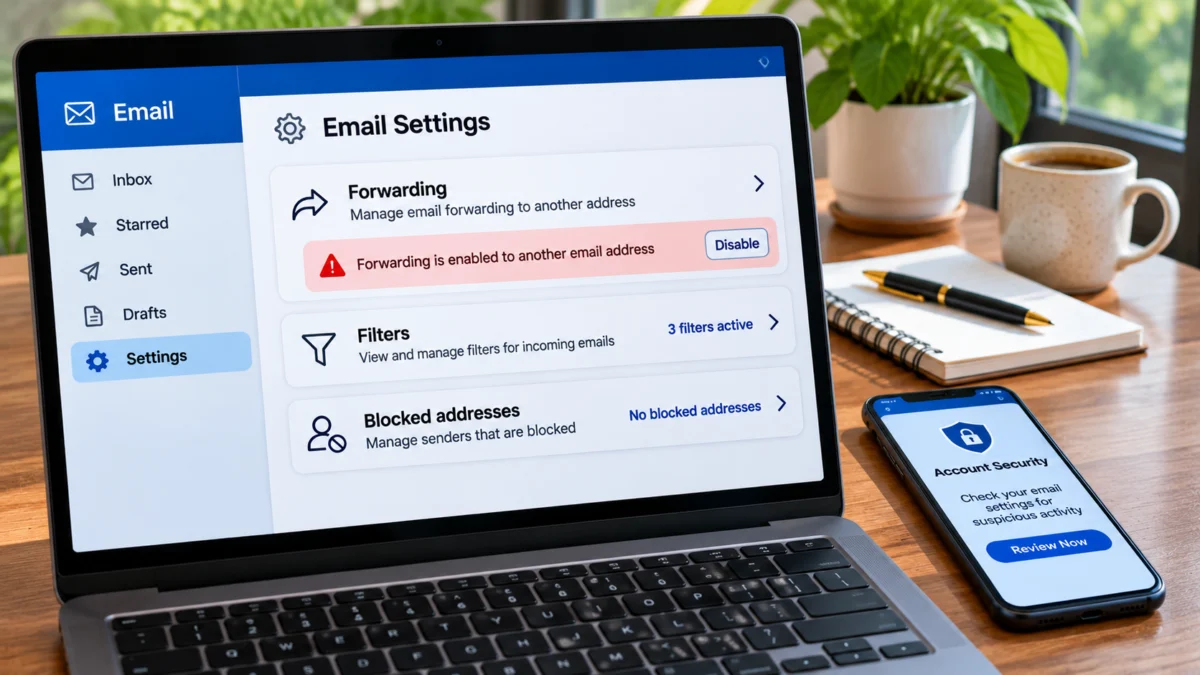
Automatic forwarding sends new incoming messages to another email address. Gmail requires the destination address to be verified before it can be used. Google says forwarded messages exclude spam, and you can choose whether Gmail keeps a copy in your Inbox or handles it differently. Read Google’s forwarding instructions.
- Open Gmail on your computer.
- Click the Settings gear and choose See all settings.
- Open the Forwarding and POP/IMAP tab. Some accounts may show a tab named Forwarding.
- Look at the Forwarding section near the top.
- Check whether forwarding is enabled and read the complete destination email address.
- Ask yourself whether you added and verified that address and whether it is still needed.
If you recognise the destination and use it for a legitimate purpose, you can leave it in place. If you do not recognise it, or you no longer need automatic forwarding, select Disable forwarding and click Save Changes at the bottom of the page.
Do not stop after checking the forwarding section. A filter can forward only selected messages even when automatic forwarding is disabled.
Step 2: Find Gmail filters that forward selected emails
Filters are rules that Gmail applies to messages matching particular search conditions. A filter can be created to organise a newsletter, label receipts or forward messages from a specific sender. It can also be configured to delete messages, skip the Inbox, mark messages as read or apply a label.
- In Gmail, click Settings and then See all settings.
- Open Filters and Blocked Addresses.
- Review every filter in the list, not only the most recent one.
- Look for filters with actions such as Forward to, Delete it, Skip Inbox (Archive it) or Mark as read.
- Click Edit on a rule if you need to inspect its search criteria and actions.
- If the rule is unfamiliar and you have confirmed it is not needed, choose Delete.
Pay particular attention to rules that match security alerts, invoices, bank messages, password-reset messages or mail from a specific domain. A filter can be narrowly targeted, so a long list of normal-looking rules does not mean every rule is safe.
Google’s filter guide explains how to create, edit and delete filters. It also notes that a filter created to forward messages affects new messages that meet its criteria. See Gmail filter instructions.
Step 3: Look for filters that hide or delete important emails
Even if you do not find a forwarding address, a filter may be hiding messages from your Inbox. Google specifically recommends checking for rules with the actions Delete it and Skip Inbox when Gmail messages are missing.
In Filters and Blocked Addresses, inspect the conditions as well as the actions. For example, a rule might match messages from a bank’s domain, messages containing words such as security or verification, or messages sent to a particular address. Check whether it:
- Deletes the matching message automatically.
- Skips the Inbox and archives the message.
- Marks the message as read.
- Applies a label that you do not normally open.
- Forwards the message to an address you do not control.
If a suspicious rule has already acted on messages, removing the filter prevents future matching messages from being processed by that rule. It does not automatically restore messages that were previously deleted or forwarded. Check All Mail and Trash for messages you still need, and investigate any missing messages separately.
Step 4: Check who has delegated access to your Gmail account
Gmail delegation allows another person to read, send and delete email on your behalf. It can be useful for an assistant or shared business mailbox, but you should recognise every delegate listed in your account.
- Open Gmail in a desktop browser.
- Go to Settings and select See all settings.
- Open the Accounts and Import tab. Depending on the account interface, the tab may be labelled Accounts.
- Find the section called Grant access to your account.
- Review every email address listed there.
- If you find an address that should not have access, click Delete beside that delegate.
Removing a delegate prevents that person from using the delegated Gmail access. If you do not recognise the delegate and suspect an account compromise, also change your Google Account password and review recent security activity and devices.
Google explains that a Gmail delegate can read, send and delete messages, but cannot change your Google Account password. Read Google’s Gmail delegation guide.
Step 5: Review Send mail as and Check mail from other accounts
The Accounts and Import tab contains other settings worth checking. Review the following sections:
Send mail as: Check whether the listed sender addresses belong to you or your organisation. An unfamiliar address could allow messages to be sent using an identity or address you did not intend to configure.
Check mail from other accounts: Review any external email addresses connected through POP retrieval. Remove an account you do not recognise or no longer use, after confirming it is not needed for a legitimate workflow.
Also check whether an unfamiliar account or delegate has been given access through an organisation’s approved mail-management setup. If this is a work or school account, confirm changes with your administrator before removing a shared mailbox connection.
Step 6: Check POP and IMAP settings
POP and IMAP are email access protocols that can allow another mail application or device to access messages. They are not the same as Gmail’s automatic forwarding setting. A legitimate desktop email client may use them, so do not disable them without checking what you use.
- Open Gmail Settings and select See all settings.
- Choose the Forwarding and POP/IMAP tab.
- Review the POP download and IMAP access settings displayed for your account.
- Check whether the configuration matches an email app or device you use.
- If you see access you do not recognise, review your Google Account devices and connected apps, then remove access that should not be there.
Google lists remote access to Gmail through IMAP or POP among the settings to check during an account-security review. See Google’s Gmail security tips.
Step 7: Review blocked addresses, labels and vacation responder
Some changes can make email look missing or unusual without forwarding messages elsewhere. Check these additional settings:
- Blocked addresses: Review the blocked senders list for addresses or domains you did not block.
- Labels: Look for unfamiliar labels and check whether important messages are being organised away from the Inbox.
- Vacation responder: On the General tab, confirm that an automatic reply is not enabled unexpectedly and that its message is appropriate.
- Signature: Check the General tab for unfamiliar links, contact details or wording added to outgoing messages.
- Scheduled emails: Open the Scheduled folder and check whether messages were scheduled that you did not write.
Google includes these Gmail settings in its account-compromise checklist. A change to one item may be harmless, but several unfamiliar changes together deserve more urgent attention.
Step 8: Review Google Account security events and signed-in devices
Gmail settings tell you what is happening to messages. Google Account security pages help you investigate how an unfamiliar person or application might have gained access.
- Open Google Account Security.
- Open Recent security events or Review security events.
- Check for sign-ins, password changes, recovery-detail changes and other activity you do not recognise.
- Open Your devices and select Manage all devices.
- Review the devices and sessions listed. Sign out of devices or sessions you do not recognise or no longer control.
- Check your recovery phone number and recovery email address and make sure they belong to you.
Do not treat an unfamiliar location by itself as conclusive proof of unauthorised access. Google notes that a device location may be approximate, and a single physical device can create multiple sessions. Check the device, browser, time and your own recent activity before deciding. Google’s device-management guide explains how to review and sign out sessions.
Step 9: Check third-party apps connected to your Google Account
Some apps and services can be authorised to access selected Google Account data, including Gmail data. If you no longer use an app or do not recognise it, review what access it has before removing it.
- Open Your connections to third-party apps and services.
- Review the apps listed under account access or connected services.
- Select an app you do not recognise or no longer trust.
- Read the details to understand which Google data or services it can access.
- Choose Remove access or the relevant remove-connection option, then confirm.
Removing access can stop an app from using Google Account data, but it may also disable features that depend on the connection. Do not remove a business tool or email client until you know what it does. Google explains the review and removal process in its third-party app access guide.
What to do if you find forwarding or a filter you did not create
If you confirm that an unknown address, filter or delegate was added without your permission, treat the account as potentially compromised. Removing the Gmail rule is only one part of the response. Someone who had access may have changed other security settings or connected an app.
- Secure your Google Account. From a device you trust, change the Google Account password to a unique password that you do not use on other sites.
- Remove the unfamiliar mail rule. Disable unknown automatic forwarding and delete suspicious filters after checking their conditions and actions.
- Remove unknown delegates. Delete any delegate you do not recognise from the Grant access to your account section.
- Review signed-in devices. Sign out of devices or sessions you do not recognise or no longer control.
- Review connected apps. Remove access for unfamiliar or unneeded third-party apps.
- Check recovery details. Make sure the recovery phone and email addresses are yours and that your two-step verification methods are under your control.
- Turn on 2-Step Verification. Use a secure second step, such as a passkey, Google prompt or security key, where available. Keep backup methods in a safe place.
- Check for malware or unsafe browser extensions. Update your browser and operating system, and remove extensions or applications you do not recognise.
- Review affected messages and services. Check for deleted messages, suspicious sent emails, password-reset notifications and financial alerts. Contact your bank or the relevant service provider directly if financial or identity information may be affected.
Google recommends changing the password if someone else may be signed in and reviewing unfamiliar devices, security events and Gmail settings. Follow its full Google Account recovery and security guide if you suspect your account was hacked.
What if you cannot sign in to Gmail?
If you cannot access your Google Account because the password, recovery phone number or recovery email was changed, use Google’s official account-recovery process. Do not pay an unknown person who claims they can recover a Gmail account, and do not share verification codes with anyone.
- Open Google Account recovery.
- Use a familiar device, browser and location where you normally sign in, if possible.
- Answer the questions as accurately as you can and provide a recovery email address you can access.
- Follow Google’s on-screen instructions and wait for its verification process.
- After you regain access, review Gmail forwarding, filters, delegates, devices, security events and connected apps.
Google says it never asks for your password or verification codes through an email, phone call or message. Enter them only on a genuine Google sign-in page at accounts.google.com. Read Google’s account recovery tips.
Quick Gmail security checklist
Use this checklist for a periodic review or after a suspicious sign-in alert:
- Automatic forwarding is disabled unless you intentionally use it.
- Every forwarding destination is recognised and authorised.
- Filters that forward, delete, archive, skip Inbox or mark messages as read are understood.
- Every Gmail delegate is someone you intentionally authorised.
- Send mail as and Check mail from other accounts contain only expected addresses.
- POP and IMAP settings match the email applications you use.
- Blocked addresses, labels, signatures and vacation responder are correct.
- Recent security events and signed-in devices do not show unexplained activity.
- Recovery phone and email details are current and belong to you.
- Third-party apps have only the access you intend to grant.
- 2-Step Verification is enabled and your recovery methods are safely stored.
Frequently asked questions
How do I know if my Gmail is forwarding emails to someone else?
Open Gmail on a computer, go to Settings, See all settings, and check the Forwarding and POP/IMAP tab. Review the destination address and whether forwarding is enabled. Also check Filters and Blocked Addresses for rules with a Forward to action because filters can forward selected messages separately.
Can Gmail forward only certain emails?
Yes. Gmail filters can forward messages that match specified search criteria. Review the filters list for any Forward to action and check the matching conditions as well as the destination address.
Does disabling automatic forwarding remove forwarding filters?
No. Automatic forwarding and filter-based forwarding are separate settings. Disable automatic forwarding in the Forwarding section and separately inspect Filters and Blocked Addresses for rules that forward selected messages.
Why are my Gmail messages disappearing from the Inbox?
A message may have been archived, deleted, filtered into a label, moved by another mail client or affected by a forwarding or POP/IMAP configuration. Check All Mail, Trash, Spam, Filters and Blocked Addresses, and Forwarding and POP/IMAP settings. If you find unfamiliar settings, secure your Google Account.
Can someone read my Gmail without adding a forwarding address?
Potentially, yes. Gmail delegation, an unfamiliar signed-in device, a connected third-party app or another mail-access method may provide access without using automatic forwarding. Review delegates, devices, recent security events and connected apps as well.
Will changing my Gmail password remove suspicious filters?
Do not assume that it will. Change your password to secure the account, then manually review and remove unknown forwarding addresses, filters, delegates, devices and app connections. Check the other security settings too.
Can I check Gmail forwarding rules from the mobile app?
The full settings review is easiest in Gmail on a desktop browser. Open mail.google.com on a computer, choose Settings and See all settings, and check the Forwarding and POP/IMAP and Filters and Blocked Addresses tabs.
Is a Gmail forwarding notice always a sign of hacking?
No. Google displays a notice when forwarding or filter-based forwarding is configured. If you did not set it up, Google recommends changing your password and turning off forwarding, then reviewing the rest of your account security.
Should I delete every filter I do not remember?
No. First inspect the search criteria and actions. A filter may have been created for a legitimate newsletter, invoice or work process. Delete or edit only rules you have confirmed are unfamiliar or no longer required.
Official Google help and security links
Use these Google resources for the latest instructions and account-recovery options. The Gmail interface may change, so follow the current labels displayed in your account.
| Official resource | Purpose | Link |
|---|---|---|
| Gmail forwarding | Review, enable or disable automatic mail forwarding and filter-based forwarding. | Google forwarding help |
| Gmail filters | Create, edit and delete filters that organise or forward incoming mail. | Google filters help |
| Gmail security tips | Review delegation, Send mail as, POP, filters, blocked addresses and forwarding settings. | Google Gmail security tips |
| Gmail delegation | Understand and remove people who have delegated access to your mailbox. | Google delegation help |
| Compromised Google Account | Review security events, devices and other recovery actions. | Google account security guide |
| Third-party app access | Review and remove apps that can access Google Account data. | Google connected apps help |
| Account recovery | Recover access if you cannot sign in to your Google Account. | Google recovery page |
For more practical account-privacy guidance, read our guide on checking which apps can read your Android notifications and our guide on checking Aadhaar authentication history and locking biometrics.