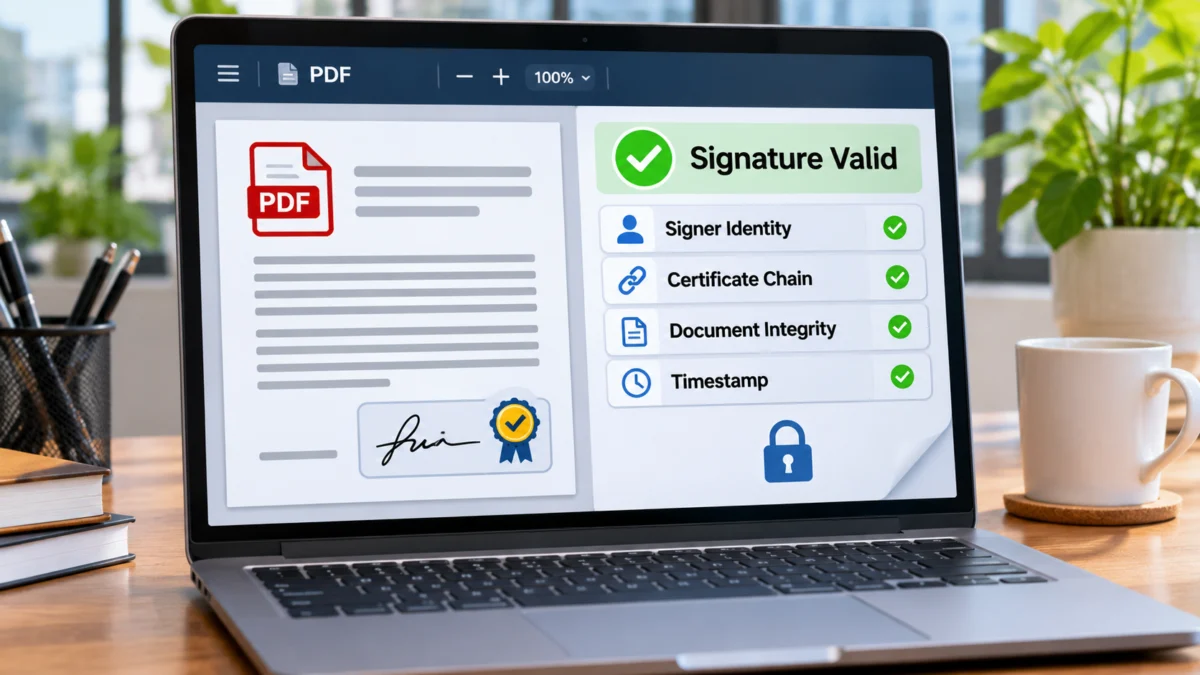
A PDF may show a name, handwritten-style signature or company seal, but that appearance alone does not prove that the file was digitally signed or that its contents are unchanged. A real PDF digital signature uses cryptographic information linked to a digital certificate. It can help you confirm who signed the file, whether the signed content has changed, and whether the signing certificate can be trusted.
This matters when you receive an appointment letter, contract, invoice, government certificate, tender document, tax record or other important PDF. Before accepting or forwarding it, check the actual digital signature status rather than relying only on the visible mark on the page.
This guide explains how to verify a digitally signed PDF using Adobe Acrobat Reader on a computer, inspect the signer’s certificate, understand common warnings, and check Indian Digital Signature Certificates (DSCs) against the official Controller of Certifying Authorities (CCA) framework.
What is a digital signature in a PDF?
A cryptographic digital signature is created using a signing key associated with a digital certificate. The signing software calculates a mathematical value from the document content and uses the signer’s private key to create the signature. A recipient’s PDF software uses the corresponding public key and certificate information to verify the signature.
The verification process is designed to help answer two important questions:
- Who signed it? The signing certificate identifies the certificate holder or organisation, subject to the accuracy and trustworthiness of the certificate.
- Has the signed content changed? The software checks whether the document content covered by the signature still matches the signed data, and reports changes made after signing.
A digital signature may have a visible appearance on a PDF page, such as a signature box, name, date or logo. It can also be an invisible signature field. The visible appearance is not the security mechanism. The cryptographic signature and certificate data are what the PDF reader validates.
Digital signature vs scanned signature image
A scanned signature is simply an image placed on a PDF page. The same is true of a typed name in a handwriting-style font or a pasted picture of a company stamp. These may be useful as visual acknowledgements, but they do not, by themselves, provide cryptographic proof of signer identity or document integrity.
| What you see | What it means | What to verify |
|---|---|---|
| Picture of a handwritten signature | An image placed on the page. | Confirm the document through the sender or issuing organisation. The image alone is not a cryptographic signature. |
| Typed name or signature-style font | Text used as a visual sign-off. | Check the organisation’s approval process and the document’s provenance. |
| PDF signature field with certificate details | May contain a cryptographic digital signature. | Validate it in a trusted PDF reader and inspect its certificate and integrity status. |
| Certification signature | A digital signature that can certify a PDF and specify what later changes, if any, are permitted. | Check the certification status and whether later changes fall within the permitted actions. |
Do not conclude that a document is digitally signed just because a signature graphic appears at the bottom of the page. Open the PDF’s signature panel and check whether a real signature field is present.
What you need before verifying a signed PDF
- A copy of the original PDF file received from the issuing organisation or sender.
- Adobe Acrobat Reader desktop or another trusted PDF application capable of validating certificate-based signatures.
- An internet connection for checks that require current certificate or revocation information.
- The expected signer name, organisation or certificate details, where available, so you can compare them with the certificate shown by the PDF reader.
Keep the original file. Avoid printing the document to PDF, exporting its pages as images, or editing and resaving it before verification. Those actions can remove the signature data or change the file in ways that make the original validation result unavailable.
How to verify a digital signature in a PDF using Adobe Acrobat Reader
The following workflow uses the desktop version of Adobe Acrobat or Acrobat Reader. Adobe’s interface is updated periodically, so some buttons may appear in a different location in your version.
- Open the original PDF. Launch Adobe Acrobat Reader and open the file you received. Do not verify a screenshot or a printed copy of the document.
- Open the Signatures panel. Look for the Signatures section in the navigation or side panel. If a digital signature is present, the panel should list one or more signatures.
- Select the signature. Click the signature entry or signature field to view its current status.
- Validate the signature. In the Signatures panel, open the Options menu and choose Validate Signatures. In some versions, you can right-click the signature field and choose Validate Signature.
- Read the validation result. Review the Signature Validation Status dialog. Do not stop at a green icon; read the full message to understand both document integrity and certificate trust.
- Open Signature Properties. Select the signature’s properties and review the signer name, signing time, reason if supplied, and the status of the document after signing.
- Inspect the certificate. Choose Show Signer’s Certificate to view the certificate subject, issuer, validity period and certificate path.
- Review the timestamp and revocation information. Check whether a trusted timestamp is present and whether the reader could check the certificate’s revocation status.
Adobe also provides a Validate all signatures command. In the current desktop workflow, open All tools, choose Use a certificate, and select Validate all signatures. Review each signature’s result rather than assuming one valid signature makes every signature in the file valid.
How to confirm that the PDF has not changed after signing
A signature validation result should tell you whether the signed content is intact. Look for wording that indicates the document has not been modified since the signature was applied, or whether changes were made after signing.
Some certified PDFs allow specific later actions, such as filling in form fields or adding additional signatures. A later change does not automatically mean the original signature was forged. The important question is whether the change was permitted by the certification settings and whether the PDF reader identifies it as an allowed change.
To investigate a difference, open the Signatures panel, select the relevant signature, open its Options menu and choose Compare Signed Version to Current Version, where available. Acrobat can compare the version covered by the signature with the current document so you can review what changed.
For a high-stakes document, ask the sender for a freshly issued copy if the reader reports unexplained changes or an invalid signature. Do not accept a modified document merely because the visible signature still appears on the page.
How to check the signer’s digital certificate
The certificate helps identify the signer and the organisation or Certifying Authority that issued the certificate. In Acrobat, open Signature Properties and select Show Signer’s Certificate. Review the certificate details and certificate path.
| Certificate detail | What to check |
|---|---|
| Subject | Does the certificate identify the person or organisation you expected to sign the document? |
| Issuer | Which Certifying Authority issued the certificate? Is it one recognised for the relevant use? |
| Validity period | Was the certificate valid at the time the document was signed? |
| Certificate path | Can the signing certificate be traced through its issuer certificates to a trusted root certificate? |
| Revocation status | Could the application check whether the certificate had been revoked or suspended at the relevant time? |
| Key usage | Does the certificate permit digital-signature use for the intended purpose? |
A certificate can identify a certificate holder, but it does not automatically prove that the person was authorised to sign on behalf of a company, department or other organisation. For contracts, procurement documents and business approvals, separately check the person’s role and signing authority through the organisation’s official channel.
How to verify an Indian Digital Signature Certificate (DSC)
In India, the Controller of Certifying Authorities (CCA), under the Ministry of Electronics and Information Technology, oversees the licensed Certifying Authorities and the national public key infrastructure. Digital Signature Certificates are issued by licensed Certifying Authorities. The CCA explains that a verifier needs the signer’s certificate and the complete issuer certificate chain up to the Root Certificate to verify an individual’s digital signature.
For an Indian-issued DSC, use this additional checklist:
- Identify the certificate issuer. Read the issuer information in the signer’s certificate. Confirm that the issuing organisation is listed among the licensed Certifying Authorities on the official CCA website.
- Check the certificate chain. The signer’s certificate should chain through the issuing CA certificates to a trusted Root Certificate. A missing intermediate certificate can prevent a PDF reader from completing this check.
- Check the root certificate source. Obtain Indian root certificate information only from the official CCA Root Certificate page. Do not install a root certificate sent to you in an unexpected email or messaging-app attachment.
- Confirm the certificate thumbprint when required. CCA provides an out-of-band mechanism for confirming root certificate thumbprints. Follow the verification instructions published by CCA rather than trusting a certificate solely because it was included in the PDF.
- Check revocation status. The signature should be checked against the relevant certificate revocation information. If the verifier cannot obtain current status, treat the result as incomplete until you can verify it.
- Check the signing time. Review the certificate’s validity at the time the signature was applied, along with any trusted timestamp and available revocation data.
The official CCA site maintains information about licensed Certifying Authorities and CA certificates, as well as its signature verification guidance. These are the appropriate references for Indian DSC trust-chain questions.
What does a valid digital signature message mean?
A valid result generally indicates that the application was able to verify the cryptographic signature and that the signed document content has not been changed in a way that invalidates the signature. It should also indicate that the certificate is trusted according to the application’s trust configuration and validation checks.
Still, “valid” does not answer every question about a document. It does not prove that the document’s statements are factually correct, that the signer had authority to enter a contract, or that the transaction described in the PDF actually took place. Check the sender, context, date, document number and organisational authority separately.
Common digital signature warnings and how to respond
| Warning or status | Possible meaning | What you should do |
|---|---|---|
| Signature validity is unknown | The reader may not recognise the certificate chain or may not have completed the required checks. | Inspect the certificate path and issuer. Check the official CA or CCA source and retry verification with the required certificates and network access. |
| Signer identity is unknown | The signing certificate is not trusted by the application, or a required issuer/root certificate is missing. | Confirm the signer and issuer through an independent official source. Do not blindly mark the certificate as trusted. |
| Document was modified after signing | The file contains changes made after the signature was applied, or the change is not permitted by the certification settings. | Compare the signed version with the current version and request an explanation or a newly signed copy. |
| Certificate has expired | The certificate is outside its current validity period. | Check when the PDF was signed and whether a trusted timestamp and historical revocation information are available. Expiry after signing does not, by itself, prove that the signature was invalid when made. |
| Certificate was revoked | The issuing CA has withdrawn the certificate. | Check the revocation time and signature time. Contact the CA or sender before accepting the document. |
| Timestamp could not be verified | The reader could not establish trust in the timestamp server certificate or retrieve required information. | Inspect the timestamp properties and obtain the required verification information from a trusted source. |
| Signature is invalid | The cryptographic check failed, the signed data changed, or a certificate problem prevents validation. | Do not rely on the visible signature. Obtain the original file and ask the sender to issue or sign it again. |
A warning is not always proof of fraud. Network restrictions, missing intermediate certificates, unavailable revocation information or an out-of-date trust store can cause incomplete validation. But until the issue is resolved, do not treat an unverified signature as confirmed.
Should you manually trust an unknown certificate?
Do not click an option such as Trust this certificate or Add to Trusted Identities simply to remove a warning. Doing so changes how your PDF reader treats that certificate on your device. It does not prove that the certificate really belongs to the claimed person or organisation.
First verify the certificate issuer and fingerprint through the official Certifying Authority or your organisation’s IT/security team. For an Indian root certificate, use the CCA’s official website and its published out-of-band thumbprint procedure. In a workplace, follow the organisation’s approved certificate trust policy.
How to enable automatic signature verification in Acrobat
You can configure Acrobat to validate signatures when a signed PDF is opened. In the desktop application, open Preferences, select Signatures, and find the Verification settings. Enable the option to verify signatures when the document is opened, then review the other verification preferences according to your organisation’s policy.
Automatic verification is convenient, but it does not replace reviewing the signer identity, certificate path, document changes and timestamp when a document is important. The result also depends on the available trust certificates, network access and revocation information.
Can you verify a digital signature online for free?
For personal documents, a trusted desktop PDF reader such as Adobe Acrobat Reader is a sensible starting point because you can inspect the signature within the PDF itself. For sensitive documents, avoid uploading the file to an unknown online signature-checking website. Contracts, identity records, invoices, employment documents and government certificates may contain personal or confidential information.
Some official portals provide their own document verification facility. When the PDF came from a government department, bank, university, employer or other institution, check whether that issuer provides a document number, QR-code verification page or official verification link. Use the issuer’s own service where available, in addition to validating the cryptographic signature.
Practical checklist before accepting a digitally signed PDF
- Open the original PDF in a trusted desktop PDF reader.
- Confirm that an actual cryptographic signature is listed in the Signatures panel.
- Validate every signature in the file.
- Check that the signed document has not been changed in an unauthorised way.
- Confirm the signer name and organisation against the details you expected.
- Inspect the certificate issuer, chain, validity and revocation status.
- Review a trusted timestamp if one is available, rather than relying only on the signer’s computer clock.
- For an Indian DSC, check the licensed CA and root certificate through the official CCA sources.
- Confirm the signer’s authority and the document’s purpose with the issuing organisation when the document has legal or financial consequences.
- Keep the original PDF and a copy of the validation details for your records.
Frequently asked questions
How can I tell if a PDF has a real digital signature?
Open it in Adobe Acrobat Reader desktop and check the Signatures panel. A real certificate-based signature appears as a signature entry that can be validated and whose certificate properties can be inspected. A picture of a handwritten signature alone is not proof of a cryptographic digital signature.
Can I verify a PDF digital signature without paying for Adobe Acrobat Pro?
Adobe Acrobat Reader desktop can display and validate digital signatures. You do not need Acrobat Pro just to inspect a certificate-based signature, although some advanced editing and signing features may require a paid version.
Why does Acrobat say the signature is valid but the signer is unknown?
The application may be able to verify the signed data but may not trust the signer’s certificate chain. Inspect the certificate issuer and path, then confirm the relevant root and intermediate certificates through the official CA or CCA source. Do not manually trust an unknown certificate without independent verification.
Does a digital signature become invalid when the certificate expires?
Not necessarily. CCA guidance says signatures are to be verified with respect to the time the signature was applied. Check whether the certificate was valid at that time and whether trusted timestamp and revocation information are available.
Can a digitally signed PDF be edited after signing?
Some certified PDFs permit specified changes, such as form filling or additional signatures. Other changes can invalidate the signature or trigger a warning. Use the signature panel and compare the signed version with the current version to understand what changed.
What is the difference between a digital signature and eSign?
Digital signature is the cryptographic method used to authenticate electronic records. eSign is an electronic signing service framework that can help a user apply a digital signature through an approved service provider. The resulting PDF should still be checked using its signature and certificate validation information.
Can I verify a digitally signed PDF on my phone?
Some mobile PDF applications display signature information, but the available certificate-chain and validation details can vary. For a contract, official certificate or other important record, use a desktop PDF reader that exposes the full signature properties, or use the issuer’s official verification service.
What should I do if the signature is invalid?
Do not rely on the visible signature. Keep the original file, note the validation message, and contact the sender through a known official channel. Ask for a fresh PDF signed again using a valid certificate.
Official references and further reading
These sources explain the verification steps and certificate requirements. Use the current instructions on the official sites if application menus or certificate information change.
| Source | What it explains | Official link |
|---|---|---|
| Adobe: Validate digital signatures | Validation through the Signatures panel, Signature Properties and certificate details. | Adobe validation guide |
| Adobe: Compare signed versions | How to compare the signed version with the current PDF. | Adobe comparison guide |
| Adobe: Validation preferences | Automatic verification and other signature validation preferences. | Adobe verification preferences |
| CCA: Signature Verification | Indian certificate chain requirements and verification after certificate expiry. | CCA signature verification |
| CCA: Root Certificate | Current Indian root certificates and certificate revocation information. | CCA root certificates |
| CCA: CA Certificates | India’s licensed Certifying Authorities and certificate information. | CCA CA certificates |
For more PDF safety guidance, read our guide on removing metadata from a PDF before sharing. You can also read our guide to DigiLocker issued vs uploaded documents to understand how to distinguish issuer-provided records from files uploaded by a user.