UPI AutoPay can make recurring payments convenient, but forgotten mandates may continue to debit your bank account after you stop using a subscription or service. A music plan, streaming membership, mobile bill, insurance premium, mutual fund SIP or other recurring payment may still have an active authorisation even when you no longer remember setting it up.
You can review your active UPI AutoPay mandates, check the merchant and debit schedule, pause a payment temporarily or revoke a mandate you no longer need. This guide explains how to find mandates in popular UPI apps, how to cancel them safely, what the RBI’s current e-mandate rules say, and what to do if an unfamiliar debit appears.
Important: Cancelling a UPI AutoPay mandate stops future automatic debits under that mandate. It does not automatically cancel the underlying subscription, loan or service contract, and it does not refund payments that have already been made. Check both the UPI app and the merchant account.
What is a UPI AutoPay mandate?
UPI AutoPay is a recurring-payment facility built around a digital authorisation called a mandate. You approve the mandate once through your UPI app, and the merchant can request future payments according to the details you accepted, such as the amount or maximum amount, frequency and validity period.
It is commonly used for:
- Streaming, music, gaming and other online subscriptions.
- Mobile, broadband, electricity and other utility bills.
- Insurance premiums and mutual fund SIPs.
- Loan instalments and other recurring repayments, where supported.
- Other merchant services that offer UPI AutoPay.
The important part is that an active mandate is an authorisation for future payments. Removing an app from your phone or deleting your merchant account does not necessarily revoke the mandate at the bank or UPI level.
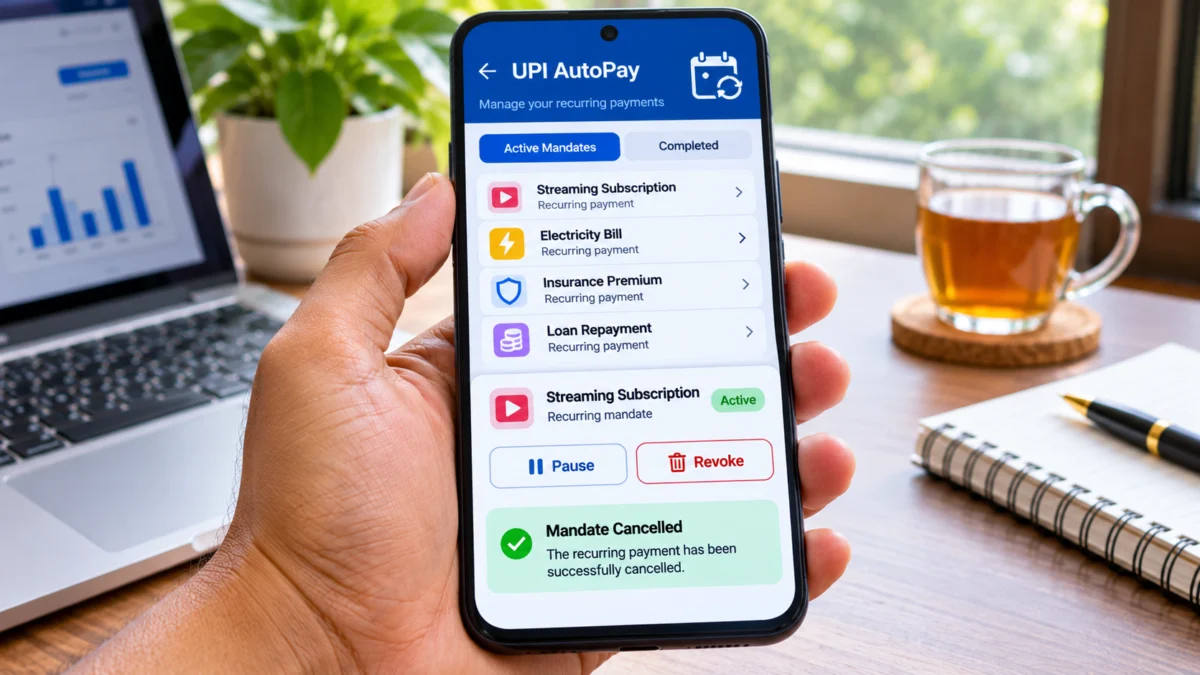
UPI AutoPay, pause, resume and revoke: understand the difference
| Action | What it does | When to use it |
|---|---|---|
| Pause | Temporarily makes a supported mandate inactive for the selected period. | When you want a short break and expect to use the service again. |
| Resume | Reactivates a paused mandate, where the app and merchant support it. | When you are ready for the recurring payments to continue. |
| Modify | Changes supported mandate details, such as an amount or validity limit, where permitted. | When the merchant or mandate type allows an adjustment. |
| Revoke or Cancel | Withdraws the mandate so future automatic payments under it should stop. | When you no longer want that authorisation to remain active. |
The actions available can depend on the UPI app, bank, merchant and type of mandate. A pause is not the same as a permanent cancellation. Always check the status shown after you submit the action.
How to find all your active UPI AutoPay mandates
Start with the UPI app you use for payments. Open its profile, settings or bank-account section and look for a menu named UPI AutoPay, AutoPay, Mandates, Automatic Payments or Subscriptions.
- Open the UPI app on your phone and sign in normally.
- Open your profile or account settings.
- Find AutoPay, Mandates or Automatic Payments.
- Open the Active or Live list. Some apps also separate Pending, Paused, Completed, Expired and Revoked mandates.
- Open each mandate to view its merchant name, amount or maximum amount, frequency, start date, end date and next debit details where available.
- Make a note of the mandates you recognise, those you no longer need and any entry you cannot identify.
Look at every active mandate, not just the ones with a large amount. A small monthly payment can continue for a long time if it is forgotten.
Can you view UPI AutoPay mandates created in different apps?
NPCI’s UPI AutoPay enhancement, issued on 7 October 2025, requires participating payer UPI apps to support mandate lifecycle management, including viewing and portability in the relevant Manage Bank Accounts or dedicated UPI AutoPay section. NPCI also describes MyUPI as a unified way to view UPI activity and active AutoPay mandates across apps and accounts.
NPCI says MyUPI can show active mandates in one view and facilitate actions such as pause, resume and revoke by redirecting the user to the respective UPI app through which the mandate was set up. It may be accessed through the NPCI or DigiSaathi website, a bank website or supported UPI apps; it does not require a separate app download according to NPCI’s product information.
Availability can depend on the bank, app and supported integration. If you cannot see a mandate in a unified view, check the UPI app where you originally approved it and contact your bank if the record is still missing.
Official resources: NPCI MyUPI and NPCI UPI AutoPay enhancement circular dated 7 October 2025.
How to cancel UPI AutoPay on Google Pay
Google Pay’s official instructions use the AutoPay section in your profile. The app separates approved mandates from pending requests and completed or revoked mandates.
- Open Google Pay on your phone.
- Tap your profile picture in the top-right corner.
- Select Autopay.
- Open the Live tab to see approved mandates that have not been completed or revoked.
- Select the mandate you want to stop.
- Choose Cancel autopay for permanent cancellation. Choose Pause autopay if you only need a temporary break and the option is available.
- Complete the UPI PIN authentication requested by the app.
- Return to the mandate list and check that its status has changed. Google says revoked mandates appear in the Completed tab.
Google notes that loan-related AutoPay mandates may not be cancellable through Google Pay. In that case, contact the lender or merchant for its cancellation process. Google also says the linked bank account must be active for cancellation to work through the app.
Official instructions: Manage recurring payments on Google Pay.
How to cancel UPI AutoPay on PhonePe
PhonePe’s AutoPay guidance describes managing mandates from the Profile and AutoPay Settings area. Menu names may change between app versions.
- Open PhonePe and tap your profile icon.
- Open AutoPay or AutoPay Settings.
- Review the active mandates and select the merchant or recurring payment you want to stop.
- Open the mandate details and choose Pause for a temporary stop or Revoke/Cancel to withdraw it, if the mandate type permits the action.
- Follow the app’s authentication prompt, which may require your UPI PIN.
- Return to AutoPay Settings and confirm that the mandate shows a paused or revoked status.
PhonePe’s terms explain that pause, resume and revoke capabilities are subject to the mandate type, merchant terms and applicable rules. Some mandate actions may not be available for every payment arrangement. If the app does not offer the required action, contact the merchant and your bank.
Official resources: PhonePe AutoPay terms and PhonePe guidance on fraudulent subscription mandates.
How to cancel UPI AutoPay on Paytm
Paytm’s published instructions place mandate management under Automatic Payments in the UPI and payment settings.
- Open the Paytm app.
- Tap your profile icon.
- Open UPI & Payment Settings.
- Select Automatic Payments.
- Review the active mandates and open the payment you want to stop.
- Choose the available Pause, Resume, Modify or Cancel option, depending on the mandate.
- Authenticate the action as requested and check the status in the mandate list.
If the labels in your app are different, use the search or help option in Paytm and look for AutoPay or Mandates. Do not approve a new mandate request just to view its details.
Official guidance: Paytm’s UPI AutoPay guide and Paytm’s cancellation FAQ.
How to cancel a mandate in another UPI or banking app
For BHIM or a bank’s UPI app, the general process is similar, but the menu names and supported actions vary:
- Open the UPI app or bank application where the mandate was authorised.
- Go to Profile, UPI Settings, Manage Bank Accounts, Mandates or AutoPay.
- Choose Active or Live mandates.
- Open the correct merchant entry and verify the amount, frequency and account details.
- Select Revoke, Cancel or Pause, depending on what you intend to do and what the app supports.
- Complete the in-app authentication and wait for confirmation.
- Reopen the list to confirm the final mandate status.
HDFC Bank also documents this general approach for Google Pay, Paytm, PhonePe and BHIM: use the UPI app where the mandate was created, locate the active mandate and confirm Cancel or Revoke. See HDFC Bank’s UPI AutoPay cancellation guide.
Pause or cancel: which option should you choose?
Choose Pause when you expect to restart the same service and the app allows the pause period you need. Choose Revoke or Cancel when you no longer want the mandate to authorise future payments.
For example, pausing a supported subscription during a short break may be convenient. If you have permanently stopped using the service, cancel the subscription with the merchant and revoke the payment mandate. Do not assume that pausing a mandate also pauses your subscription or changes the service’s billing terms.
Do you also need to cancel the subscription with the merchant?
Yes, when you want to end the service itself. UPI AutoPay cancellation and subscription cancellation are related but separate actions.
For example, if you cancel a streaming subscription only in the UPI app, the payment authorisation may be revoked, but the merchant account may still show the subscription as active or an unpaid amount may remain due under the merchant’s terms. If you cancel only on the merchant website, check the UPI app as well to ensure the mandate status is revoked.
A safer cancellation sequence is:
- Open the merchant’s official app or website and cancel the subscription or turn off auto-renewal.
- Save the merchant’s cancellation confirmation, email or reference number.
- Open your UPI app and find the matching AutoPay mandate.
- Revoke the mandate if it is still active and the app permits it.
- Check that the UPI mandate status shows Cancelled or Revoked and keep a screenshot for your records.
- Review the next scheduled debit date and monitor your bank statement.
HDFC Bank advises checking both the merchant platform and UPI app. It also notes that cancellation stops future payments and does not automatically refund amounts already debited.
What does the RBI’s current e-mandate framework say?
As of November 2026, the Reserve Bank of India’s Digital Payments – E-mandate Framework, 2026, dated 21 April 2026, is the current consolidated framework for recurring transactions using cards, prepaid payment instruments and UPI. It replaced earlier circulars listed in the notification.
Some useful protections and requirements in the framework include:
- One-time registration with authentication: The mandate is registered after successful additional-factor authentication (AFA), along with the normal issuer process.
- Validity information: Each mandate must specify a validity period, and the issuer must provide a facility for the customer to modify that period or withdraw the mandate.
- Withdrawal and modification: Changes or withdrawal of an existing mandate require AFA validation by the issuer.
- Pre-debit notification: The issuer must send a notification at least 24 hours before the actual debit. The notice must include details such as the merchant, amount, debit date/time and mandate reference.
- Opt-out facility: The issuer must provide a way to opt out of a particular transaction or the mandate, subject to AFA validation. There are specified exceptions for auto-replenishment of FASTag and National Common Mobility Card balances.
- Post-debit notification: The issuer must also send a notification after the transaction with the transaction and mandate details and grievance information.
- Authentication thresholds: Recurring transactions may be processed without a fresh AFA up to ₹15,000 per transaction. Insurance premiums, mutual fund subscriptions and credit card bill payments may be processed without a fresh AFA up to ₹1,00,000 per transaction. Amounts above the applicable threshold require AFA.
These AFA thresholds are not a promise that every mandate will be debited without a PIN, and they are not a limit on how much a subscription can cost. Your mandate terms, issuer, merchant category and the app’s authentication flow still matter. The first transaction under a mandate requires AFA, although it may be combined with the registration process.
Read the current RBI notification: Digital Payments – E-mandate Framework, 2026.
What if you cannot find or cancel a UPI AutoPay mandate?
If a mandate is missing from the app or the cancellation request fails, do not assume that it has been removed. Try these steps:
- Check the original UPI app. Look in the app where you approved the mandate. If you use multiple UPI apps, check each one.
- Update the app. Install the latest official version and reopen the AutoPay or Mandates section.
- Check the bank account status. Some apps require the linked bank account to be active to process a cancellation. Google Pay specifically identifies an inactive linked account as one reason cancellation can fail.
- Check the mandate type. Certain loan, debt-collection or other merchant-specific mandates may require cancellation through the merchant or lender rather than directly in the UPI app.
- Contact the merchant. Ask the merchant to stop future collection requests and provide written confirmation of the cancellation request.
- Contact your bank or UPI app support. Provide the mandate reference, merchant name, amount, debit date and screenshots. Do not share your UPI PIN or OTP.
- Keep the complaint reference. Save the ticket number, email and any acknowledgement. Follow up if the mandate still appears active.
If you have a loan or EMI, do not simply ignore the repayment obligation. Revoking a payment method does not cancel the loan contract or amount due. Coordinate with the lender and arrange another permitted repayment method to avoid missed-payment consequences.
What should you do if an unknown UPI AutoPay debit appears?
Act quickly if you see a debit that you did not authorise or cannot identify. First protect the account and create a record of the transaction.
- Open your bank statement or UPI transaction history and note the amount, date, merchant description and transaction reference.
- Check the AutoPay or Mandates section for the corresponding mandate. Save its details without publishing sensitive account information.
- Contact your bank immediately through its official app, website or phone number and report the unauthorised recurring debit.
- Ask the bank to register a dispute and provide a complaint or service-request number.
- Revoke the suspicious mandate if the app permits it, and contact the merchant through a verified channel.
- If you suspect fraud, report it through the National Cyber Crime Reporting Portal at cybercrime.gov.in or call the national cybercrime helpline 1930.
- Keep screenshots, SMS alerts, transaction IDs and bank complaint records. Do not delete evidence.
The RBI’s 2026 framework says the applicable RBI instructions on limiting customer liability for unauthorised transactions also apply to recurring e-mandate transactions. Report the issue to your bank promptly and follow the bank’s dispute process.
How to avoid unwanted AutoPay deductions in the future
- Read the merchant name, payment amount or maximum amount, frequency and validity period before approving a mandate.
- Never approve a mandate request that you did not initiate or do not understand.
- Check upcoming pre-debit notifications instead of ignoring them.
- Review active mandates every few months and after cancelling a subscription.
- Use Pause for a temporary break and Revoke for a mandate you no longer need.
- Keep your UPI app and phone operating system updated.
- Never share your UPI PIN, OTP, screen-sharing access or remote-control access with a caller who says they will cancel a mandate for you.
- Use only official bank, merchant and UPI app support channels.
Frequently asked questions
How do I check all active UPI AutoPay mandates?
Open the UPI app or bank app you use, go to Profile, Settings, Manage Bank Accounts or UPI AutoPay, and check the Active or Live list. NPCI also describes MyUPI as a unified view for UPI activity and mandates across participating apps and accounts. If a mandate is missing, check the app where it was originally approved.
Can I cancel UPI AutoPay without visiting my bank?
Usually, you can cancel a supported mandate in the UPI app where it was created by opening AutoPay or Mandates and choosing Cancel or Revoke. Some loan or merchant-specific mandates may require you to contact the lender or merchant. Your bank can help if the app action fails.
Do I need my UPI PIN to cancel an AutoPay mandate?
The app may require UPI PIN authentication to validate a mandate withdrawal. Enter your PIN only in the official UPI app after you have personally initiated the cancellation. Never tell your PIN to a caller, merchant agent or support representative.
Does deleting Google Pay, PhonePe or Paytm cancel UPI AutoPay?
No. Uninstalling a UPI app does not, by itself, prove that an active mandate has been revoked. Cancel or revoke the mandate through a supported app or contact the bank and merchant, then check the final status.
Will cancelling AutoPay cancel my subscription?
Not necessarily. Revoking the payment mandate stops future automatic debits under that authorisation. Cancel the subscription or auto-renewal with the merchant separately and verify both cancellation confirmations.
Will cancelling a UPI AutoPay mandate refund money already deducted?
No. Cancellation normally stops future payments only. For a refund or disputed debit, raise a separate request with the merchant and your bank.
Can I pause UPI AutoPay instead of cancelling it?
Yes, where the app and mandate type support pausing. A pause is temporary and can generally be resumed later. Check the pause dates and status in the app before assuming the next debit has been stopped.
Why is the Cancel option missing for my loan EMI mandate?
Some loan-related or debt-collection mandates cannot be revoked directly through certain UPI apps. Contact the lender or merchant for the correct process and ask your bank for help if the mandate remains active. Remember that cancelling a payment mandate does not cancel the loan repayment obligation.
Do I get a notification before a UPI AutoPay debit?
Under the RBI’s 2026 e-mandate framework, the issuer must generally send a pre-transaction notification at least 24 hours before the debit, with specified exceptions such as auto-replenishment of FASTag and NCMC balances. Review the notice and use the available opt-out process if you do not want a particular eligible transaction to proceed.
What is the difference between a UPI mandate and a normal UPI payment?
A normal UPI payment is initiated as a one-time transaction. A mandate is a recurring authorisation that allows a merchant to request payments according to the approved amount, frequency and validity terms.
Official references and help links
Use these official or primary sources for current rules and app-specific steps. Menu labels can change as UPI apps are updated.
| Source | What it explains | Link |
|---|---|---|
| Reserve Bank of India | Digital Payments – E-mandate Framework, 2026, including mandate withdrawal, notifications, opt-out and authentication requirements. | Read the RBI framework |
| NPCI MyUPI | Unified access to UPI transaction history, AutoPay mandates and complaint support. | Visit NPCI MyUPI |
| NPCI UPI AutoPay circular | Mandate lifecycle management and portability requirements for UPI apps. | Read the NPCI circular |
| Google Pay Help | Find Live, Pending and Completed mandates; pause or cancel an AutoPay. | Google Pay AutoPay help |
| PhonePe | AutoPay terms, pause and revoke options, and mandate conditions. | PhonePe AutoPay terms |
| Paytm | How to view and manage automatic recurring payments. | Paytm UPI AutoPay guide |
| HDFC Bank | General cancellation steps, merchant cancellation and FAQs. | HDFC Bank cancellation guide |
| National Cyber Crime Reporting Portal | Report suspected online financial fraud. | Report cybercrime |
For more practical digital-payment guidance, read our article on how AI is shaping the next era of digital payments.